Profile, appearance and security
Change your name, photo and theme, see recent security activity, and sign out everywhere.
Your account settings hold your name and photo, how Yuyu looks for you, and the controls that keep your account safe. Open your account menu (your name or picture in the sidebar) and choose Account settings.
The page has four tabs: Profile, Registrations, Organisations and Security. The header above them shows whether your email is verified, whether two-step verification is on, and when you joined. Your data and memberships covers the Registrations and Organisations tabs.
Your profileLink to this section
The Profile card sets how you appear across Yuyu, for example to your organisation's other members.
- Open the Profile tab.
- To use your own photo, choose Choose profile image and pick a JPEG, PNG or WebP image up to 5 MB. Use Replace image or Remove to change it later.
- Edit your Display name (up to 120 characters).
- Choose Save changes.
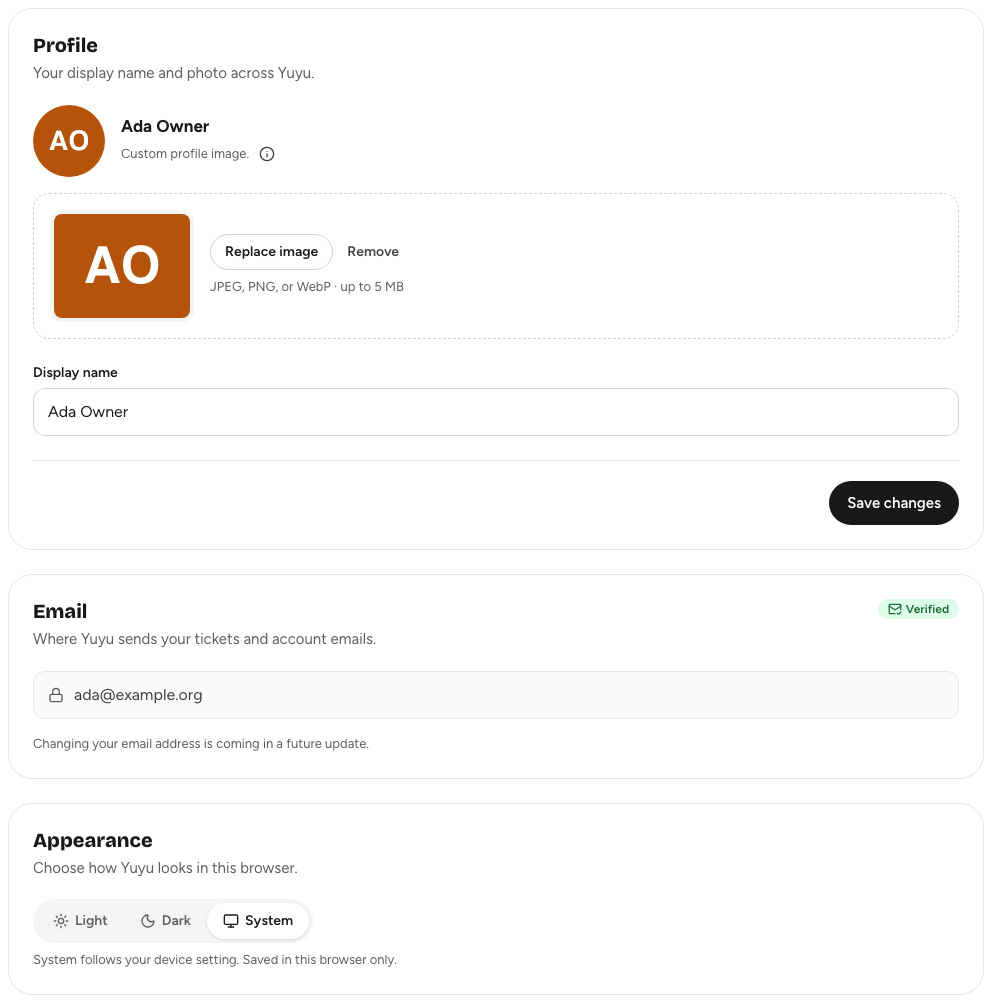
Without an uploaded photo, Yuyu uses the picture from your Google account if you signed in with Google, then your Gravatar if you have one, and otherwise your initials.
Email addressLink to this section
The Email card shows the address Yuyu sends your tickets and account emails to, and whether it is Verified. If it says Not verified, choose Resend verification email and follow the link. You need a verified email to create events.
You can't change your email address yourself yet.
AppearanceLink to this section
Choose Light, Dark or System in the Appearance card. System follows your device's setting. The choice is saved in this browser only, so set it again on other devices.
PasswordLink to this section
Open the Security tab.
- Change your password: in Password, enter your Current password, a New password of at least 12 characters, and Confirm new password, then choose Update password.
- Add a password: if you've only ever signed in with Google, the card is called Add a password. Enter and confirm a new password and choose Add a password to be able to sign in with email and password too.
Either way, you're signed out on every device, including the Yuyu mobile app, and sign in again with the new password.
Forgotten your current password? Use Forgotten your password? instead.
Two-step verificationLink to this section
The Two-step verification card shows On or Off and lets you set up or turn off an authenticator app. See Two-step verification.
Sign-in methodsLink to this section
Sign-in methods lists the ways into your account: Email and password (shown as Set or Not set) and any linked account such as Google (shown as Connected). A linked account's own security settings apply when you use it.
Recent security activityLink to this section
This card lists your ten most recent security changes with the time of each:
- Two-step verification turned on or off
- Password added, changed, or reset by email link
- Signed out everywhere
If you see a change you didn't make, change your password and choose Revoke all sessions straight away, then turn on two-step verification.
Sign out everywhereLink to this section
Lost a phone, or signed in on a shared computer? Sign out everywhere ends every session at once.
- On the Security tab, choose Revoke all sessions.
- Confirm with Revoke sessions.
Every browser and device, including the Yuyu mobile app and the one you're using, is signed out immediately. Like other security changes, this needs a sign-in within the last ten minutes.