Building the programme
Tracks and sessions for a public schedule.
The programme is your event's public running order: talks, workshops, breaks and anything else, arranged in tracks. Guests see it on the event page, on a full Programme page, and on a page for each session and speaker.
Tracks and sessionsLink to this section
A track is one independent room, stage or stream, such as "Main Hall" or "Workshop room". Every session belongs to one track. A small event usually needs a single track; a conference with parallel rooms has one track per room.
On the public Programme page, tracks appear side by side, each with its sessions in time order. All times are shown in the event's time zone.
Opening the scheduleLink to this section
- Open the event and choose the Event page tab, then Page & programme.
- On the Programme card, choose Open schedule.
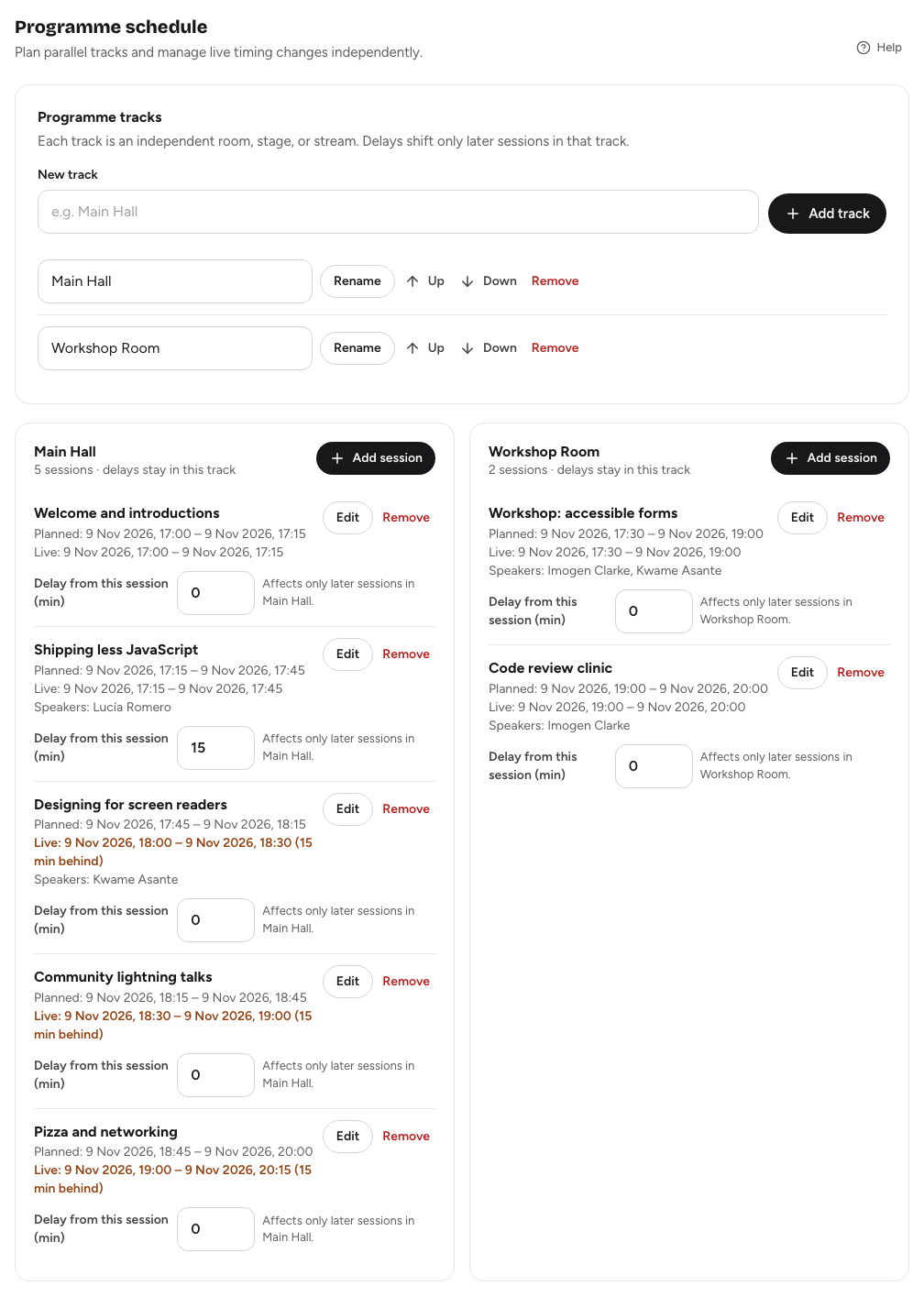
The Programme schedule page has a Programme tracks card at the top and a card for each track below it. Use Back to event to return to the dashboard.
Adding tracksLink to this section
- Under Programme tracks, type a name in New track, for example "Main Hall".
- Choose Add track.
Each track has its own row where you can edit the name and choose Rename, move it with Up and Down, or Remove it. The order here is the order tracks appear in the programme. Track names must be unique within the event, and you can only remove a track once it has no sessions.
Adding a sessionLink to this section
- On the track's card, choose Add session.
- Under Session details, enter the Session title and, if you like, a Session description. The description appears on the session's own page.
- Under When and where, set Planned start and Planned end in the event's time zone. The start is filled in for you with the end of the track's last session.
- Check the Track, and pick a Type: Keynote, Talk, Panel, Workshop, Fireside chat, Networking, Break or Other. You can also type your own.
- Under Speakers and visibility, select everyone appearing in the session.
- Choose a Visibility: Published shows the session publicly; Draft and Hidden keep it off the public pages.
- Choose Add session.
To change a session, choose Edit, make your changes and choose Save changes. Remove deletes the session after you confirm; this can't be undone.
Sessions at the same timeLink to this section
Sessions in different tracks can run at the same time; that's what tracks are for. If two sessions in the same track overlap, Yuyu still saves them but shows a Time overlap chip and a warning, because guests may need guidance. When two sessions share a start time, Display order decides which is listed first.
What guests seeLink to this section
- The event page's Schedule section lists your published sessions and links to the full programme.
- The Programme page shows every track with its published sessions, their type and their speakers.
- Each session has its own page with its time, description and speakers, what's next in the same track, and what else starts at the same time.
- Each speaker's page lists their sessions.
If you add a delay on the day, guests see the updated times and a "Running late" note. See Running late: live delays.
Good to knowLink to this section
- The Schedule section only appears on the event page once at least one session is published and the Programme section is switched on. See Building your event page.
- Programme times use the event's time zone, set in Event details. If you pick a time that doesn't exist in that zone (for example during a clock change), Yuyu asks you to choose another.
- Recurring series have their own schedule on the series page; this article covers one-off events. See Recurring series.