The cover photo editor
Crop, straighten and adjust your cover before it goes live.
The cover photo editor opens whenever you add a cover image to an event. Use it to frame your photo for the wide banner on the event page, straighten it, and tweak the colours before anyone sees it. Your original photo is never changed.
Add or change a coverLink to this section
- Open the event and choose Event page → Details.
- In the Cover image card, choose Choose image, drag a photo onto the box, or copy a photo and paste it anywhere on the page.
- The editor opens. Position and adjust the photo (see below).
- Choose Apply.
- Choose Save changes in the bar at the bottom of the page.
The cover isn't live until you save the Details form. Use a JPEG, PNG or WebP photo up to 5 MB.
To change a cover later, choose Edit (or click the cover itself) to re-crop it from the original photo, Replace to pick a different one, or Remove to take it off.
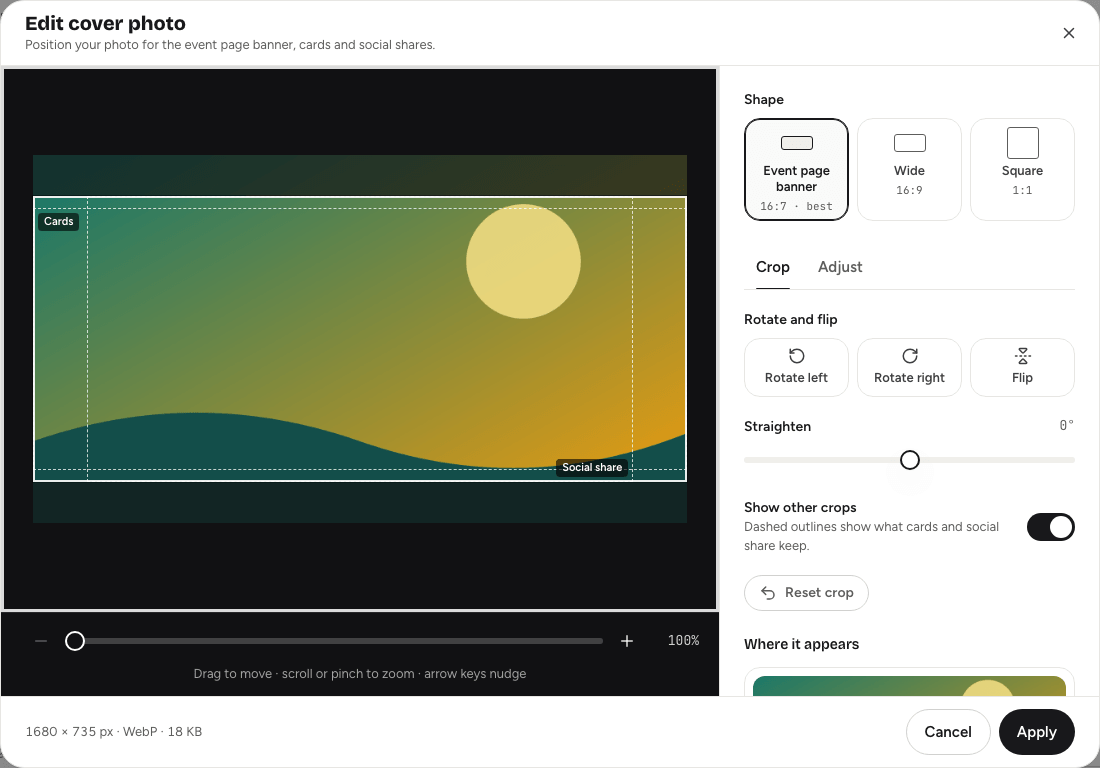
Position the photoLink to this section
The photo always fills the frame, so there are never empty edges.
- Move: drag the photo. With the keyboard, use the arrow keys; hold Shift to move further.
- Zoom: scroll, pinch, use the slider under the photo, or the − and + buttons. You can zoom up to 400%. On the keyboard, press + or -.
ShapeLink to this section
Pick the shape at the top of the controls:
- Event page banner (16:7): the default, and the right choice for most covers.
- Wide (16:9).
- Square (1:1).
Crop toolsLink to this section
On the Crop tab:
- Rotate left and Rotate right turn the photo a quarter turn.
- Flip mirrors it left to right.
- Straighten tilts it up to 15° either way, to level a wonky horizon.
- Show other crops draws dashed outlines showing what other places, such as event cards and social shares, will keep of your photo. Keep faces and text inside them.
- Reset crop undoes all of the above.
Adjust the coloursLink to this section
On the Adjust tab:
- Looks: one-tap styles: Original, Vivid, Warm, Cool, Mono and Soft.
- Brightness, Contrast and Saturation sliders for finer changes.
- Reset adjustments puts the colours back.
Check where it appearsLink to this section
Where it appears shows your photo as it will look in the Event page header, on an Event card, and as a Social share preview. They update as you edit.
Under the photo, the editor shows the final size in pixels and the file size.
Finish or cancelLink to this section
- Apply keeps your edits and puts the new cover into the form.
- Cancel, or the close button, leaves the editor. If you've made changes, Yuyu asks whether to Discard edits or Keep editing.
Good to knowLink to this section
- Yuyu checks and resizes every cover when you save, and removes hidden details such as camera and location data from the file.
- If the current cover can't be opened for editing in your browser, Yuyu asks you to upload the original photo again.
- A cover isn't required. Without one, the event page starts with the title. You can still give the page some colour with an accent colour.
- You need a verified email address to upload a cover.