Exporting guest data
Download guests, teams and email addresses as CSV.
You can download your guest list as a CSV file to open in a spreadsheet, print a door list, share numbers with a venue, or import into another tool. Every export holds the whole event, not just the rows on screen, and follows the filters you've picked.
Which export to useLink to this section
| Button | Where | What you get |
|---|---|---|
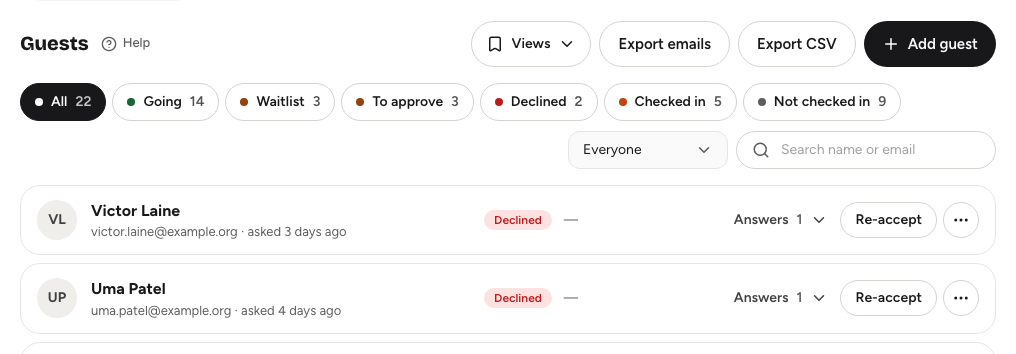
| Export CSV | Guests → People | One row per registration, with status, check-in time, ticket link and every answer. |
| Export emails | Guests → People | Just names and email addresses, one row per address. |
| Export CSV | Guests → Teams (team events) | One row per team, with its members. |
| Export attendance | Check-in tab | The same file as People Export CSV, for every registration. |
Downloading guestsLink to this section
- Open the event and choose the Guests tab, then People.
- Pick any filters you want, for example Going, or type a search. Leave everything on All for every registration.
- Choose Export CSV or Export emails. The file downloads straight away.
The export holds every registration that matches the filters and search showing, even ones you haven't scrolled to. If nothing matches, the buttons are greyed out.
What's in the guest CSVLink to this section
Columns appear in this order:
- Name, Email and Status.
- Team and Team role (Leader, Member or Solo), on team events only.
- Registration Date and Checked In At.
- Ticket URL: each guest's private ticket link.
- One column for each question on your registration form, headed with the question.
- One column for each custom check-in list, headed "Check-in:" and the list name, with the time the guest was checked into it.
- Attendance confirmation and Attendance note: the guest's answer to Are you still coming? (Coming, Not coming, No reply or Not asked) and any note they left. Both are empty until you've asked anyone.
A few things to know when you open it:
- Status uses the stored names: CONFIRMED (going), WAITLISTED, PENDING_APPROVAL (to approve) and REJECTED (declined).
- Dates and times are in UTC in a standard format, for example
2026-10-14T09:30:00.000Z. Most spreadsheets can convert them to your time zone. - Yes / no answers show as Yes or No.
- Crew members are included, with the status CONFIRMED. The file has no separate crew column; the crew list itself is in Guests → Crew.
The email listLink to this section
Export emails gives a two-column file, Name and Email, with each address once. It's handy for importing into a mailing tool. To email guests from Yuyu instead, use the Emails tab; see Emailing your guests.
The teams CSVLink to this section
On team events, Export CSV on the Teams sub-tab downloads every team matching the filter chip and search showing. Each row has the Team name, Status, Size, whether it's Incomplete or Looking for members, the Leader and Leader email, the Members (each as a name and email), the Submission status of its hackathon project (None when there isn't one) and when it was Created.
Good to knowLink to this section
- File names include the event title and the date, such as
attendees_Spring_Meetup_2026-10-27.csv. - Each download is recorded in Yuyu's audit log, noting which filters were used but never the search text.
- Feedback responses and judging scores have their own exports. See Feedback forms and Awards and results.
- For counts and charts rather than a list, see Analytics and The post-event report.