Speakers and sponsors
Speaker profiles and pages, and sponsors with their tiers.
Speakers and sponsors are two sections of your event page. Each speaker gets a card on the event page and a page of their own listing their sessions. Sponsors appear together, each with a logo, a short description and their tier.
You manage both on the Event page tab, under Page & programme, in the Speakers and Sponsors cards under Section content.
Adding a speakerLink to this section
- Open the event, choose the Event page tab, then Page & programme.
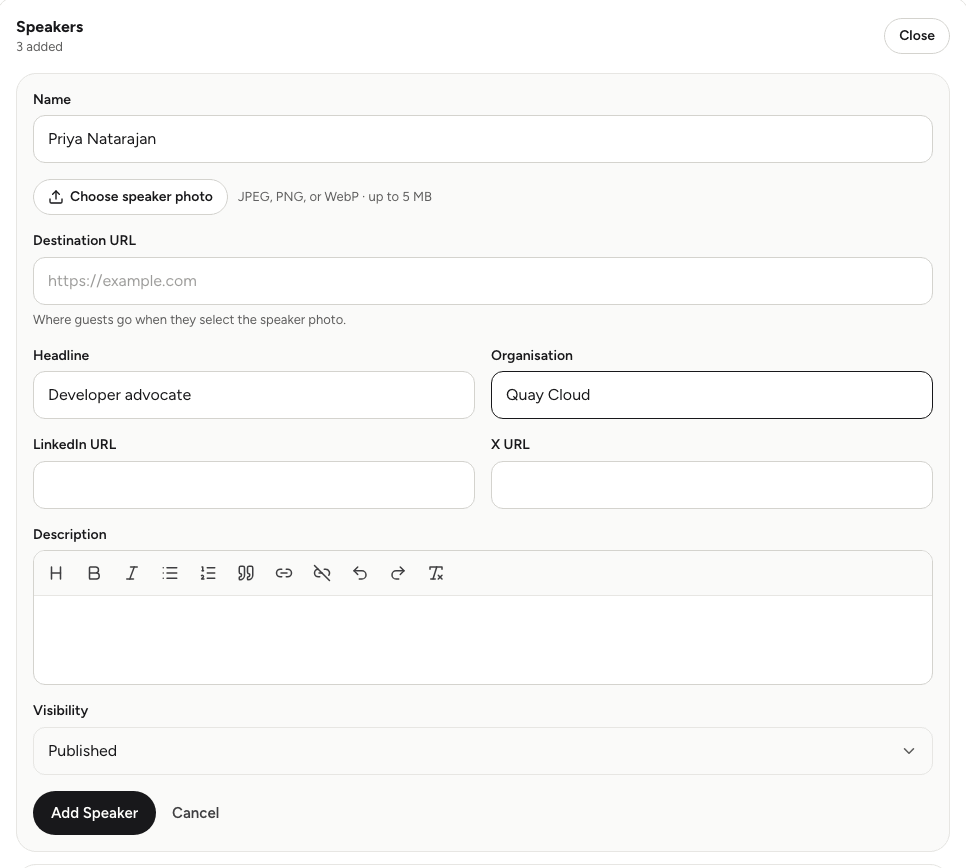
- In the Speakers card, choose Add Speaker.
- Enter the speaker's Name.
- Choose Choose speaker photo and pick a JPEG, PNG or WebP image of up to 5 MB.
- Fill in any of the optional fields:
- Destination URL: where guests go from the speaker's page, such as their website.
- Headline: a short line such as "Community lead".
- Organisation: where they work or study.
- Description: their bio, which you can format with the text toolbar.
- Choose a Visibility. Only Published speakers appear on the public page.
- Choose Add Speaker.
To change a speaker later, choose Edit on their row, make your changes and choose Save changes. To replace the photo, choose a new one while editing.
Where speakers appearLink to this section
- The Speakers section of the event page shows a card for each published speaker, with their photo, name, headline and organisation.
- Each card opens the speaker's own page, with their bio, a Website button for the destination URL, and a list of their published sessions.
- In the programme, each session lists its speakers. You choose them when you add or edit a session; see Building the programme.
Adding a sponsorLink to this section
- In the Sponsors card, choose Add Sponsor.
- Enter the sponsor's Name.
- Choose Choose sponsor logo and pick a JPEG, PNG or WebP image of up to 5 MB.
- Add a Destination URL if the logo should link to the sponsor's website.
- Pick a Sponsor tier: Platinum, Gold, Silver, Partner or Community partner.
- Add a short Description if you like, for example what they're supporting.
- Choose a Visibility, then Add Sponsor.
Where sponsors appearLink to this section
Published sponsors appear in the event page section titled Partners. Each card shows the logo, name, description and tier, and links to the destination URL when there is one. Sponsors appear in the order you added them, with their tier as a label on each card, so add your headline sponsors first.
Sponsors also appear in the post-event report, grouped by tier.
Removing a speaker or sponsorLink to this section
Choose Remove on the row and confirm. This can't be undone. Removing a speaker also takes them off every session they were listed on.
If you only want to take someone off the page for now, edit them and set Visibility to Draft or Hidden instead. Their details stay saved for later.
Good to knowLink to this section
- You need a verified email address to upload photos and logos. If the upload is refused, check your inbox for the verification email; see Creating an account and signing in.
- Uploads are limited for a short while if you upload many images quickly. Wait a moment and try again.
- The Speakers and Sponsors sections only show on the event page when they're switched on in Sections and have at least one published entry. See Building your event page.