Setting up team registration
Register people in teams for hackathons, jams and competitions.
Team registration lets people sign up together as a team, which suits hackathons, game jams, quizzes and competitions. One person creates the team and shares a link; teammates join with it. You then approve, waitlist and check in whole teams rather than individuals.
How team registration worksLink to this section
- One person creates a team when they register, giving it a name. They become its leader.
- The leader gets an email with a private link to their team page and a join link to share with teammates.
- Teammates open the join link and register into the team. The leader can also add people by name and email from the team page.
- Each team member still has their own ticket and checks in on their own.
- Depending on your settings, people can also register solo, without a team.
Team registration is for one-off events. Recurring series always register people individually.
Turning it onLink to this section
- Open the event, choose the Event page tab, then Details.
- In the Publishing card, under Sign-ups, turn on Team registration.
- Set Smallest team and Largest team (see below).
- Choose an answer for Can people sign up without a team?.
- Choose Save changes in the bar at the bottom of the screen.
You can also turn it on in the last step of the Create event dialog, with the same settings.
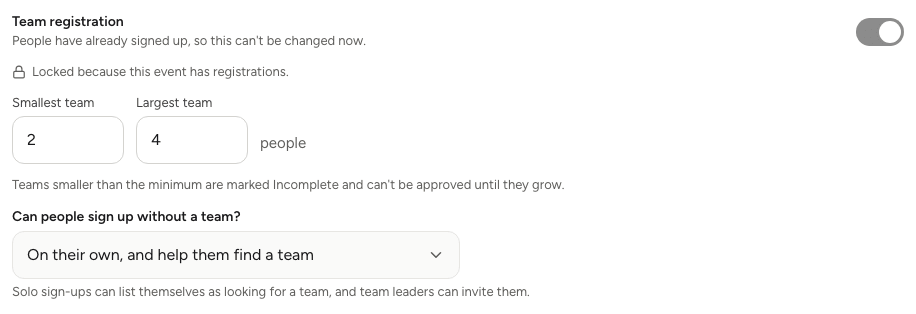
Team sizesLink to this section
- Largest team is required: at least 2 and at most 100 people. Nobody can join a team that's already this size. Once teams exist, you can't set it below the size of the largest one.
- Smallest team is optional; leave it blank for any size. Teams below it are marked Incomplete on the Guests tab, and you can't approve them until they grow.
Signing up without a teamLink to this section
Can people sign up without a team? has three answers:
| Choice | What happens |
|---|---|
| Teams or on their own | People can create or join a team, or register on their own. |
| On their own, and help them find a team | As above, and people registering on their own can list themselves as looking for a team, with a short headline and up to eight skills. Team leaders with space can invite them, and they can ask to join teams that are looking for members. |
| Teams only | Everyone must create or join a team. |
People who list themselves as looking for a team are only shown to team leaders and other people looking, for the same event. Only their first name and last initial, headline and skills are shown, never their email.
Places and the waitlistLink to this section
With team registration on, a place limit counts teams and solo registrants, not people. A team of five takes one place, and so does each person registering on their own. Joining an existing team never uses up another place.
When the limit is reached, new teams and solo registrants join the waitlist. If you approve each sign-up, whole teams wait for your decision. See Capacity, waitlists and approvals.
What guests seeLink to this section
The register button on the event page reads Register your team, or Register a team or yourself when solo sign-ups are allowed. The form then offers Create a team, Join with a link and, if allowed, Register solo. Team names must be unique within the event.
For a step-by-step from the guest's side, including the team page, see Registering as a team.
Managing teamsLink to this section
Teams appear on a Teams sub-tab of the Guests tab, where you approve, decline and give places to whole teams, rename teams, move people between teams and delete teams. See Managing teams.
Good to knowLink to this section
- Each team member answers your registration questions when they register with the join link. People a leader adds by name and email skip the custom questions.
- You can add someone to a team event on your own from the Guests tab, even when the event is set to Teams only. You can then put them in a team with Add to a team.
- Badges can show each guest's team name, and exports include team columns. See Printing badges and Exporting guest data.
- Teams also work with hackathon submissions, where each team submits one project. See Running a hackathon.