Awards and results
Rank projects, give awards and publish the results page.
When judging is closed, the Results section ranks every project by score, and the Awards section is where you choose the winners. Publishing puts the winners on a public results page and, if you choose, emails your entrants. You pick the winners yourself: the ranking guides you, but nothing is awarded automatically.
Ranking the projectsLink to this section
Open Judging → Results. The Ranking table lists every submitted project with:
- Rank. Projects with the same score share a rank, so you might see 1, 1, 3.
- Raw and Adjusted scores, out of 100. The one that decides the rank is marked "ranks".
- Judges: how many submitted reviews count towards the score.
- The average score for each criterion in your rubric.
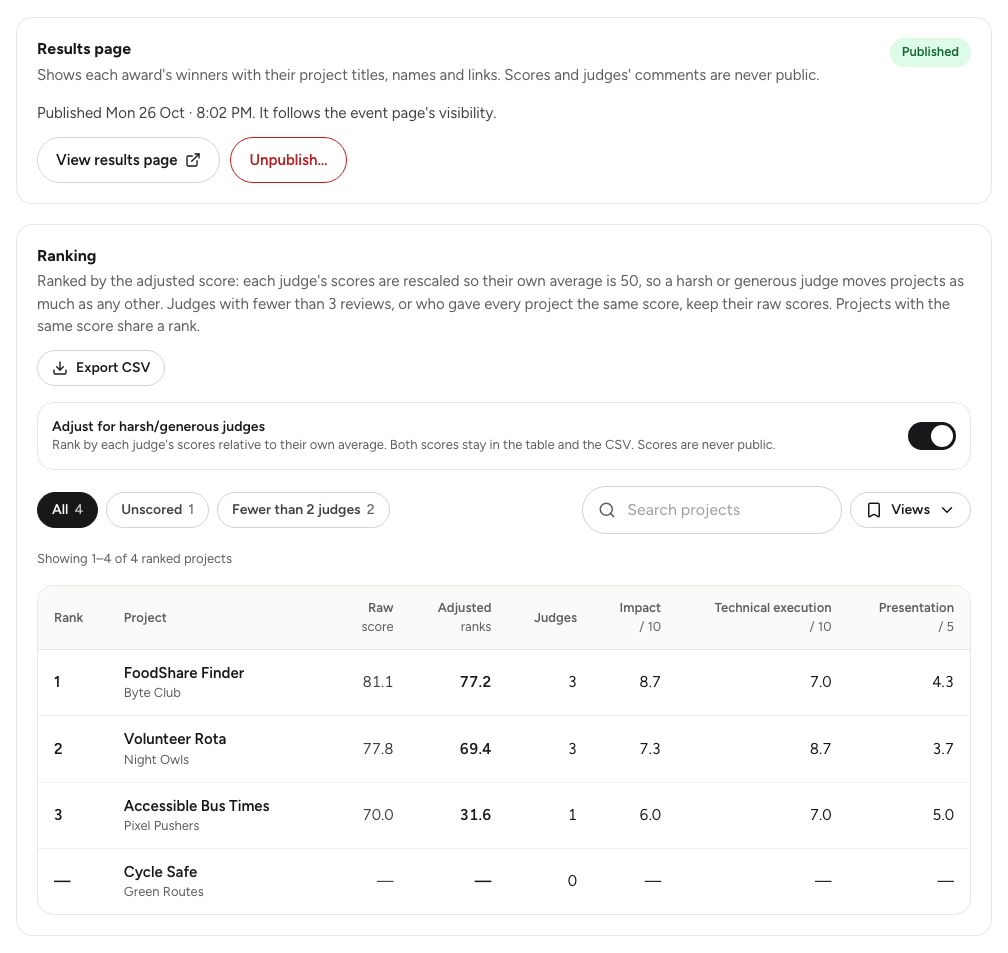
Projects without a submitted review have no score yet. Use the chips to see All, Unscored, or projects scored by Fewer than 2 judges, and Search projects to find one. Filtering never renumbers the ranks. The table shows 50 projects to a page.
Adjusting for harsh or generous judgesLink to this section
Some judges mark everything high, others everything low. If projects were reviewed by different judges, that can decide the ranking more than the projects themselves.
Turn on Adjust for harsh/generous judges to rank by the adjusted score. Yuyu rescales each judge's scores around their own average, so a tough judge moves a project as much as a generous one. Judges with fewer than 3 reviews, or who gave every project the same score, keep their raw scores.
You can switch at any time. Both scores always stay in the table and the export, and neither is ever shown publicly.
Exporting scoresLink to this section
Choose Export CSV on the Ranking card to download the ranked projects matching your search and filter, with both scores and each judge's review. Judges appear by name, never by email address, and review times are in the event's time zone.
To see how far each judge has got, open the Judges section, or Progress for more detail.
Creating awardsLink to this section
- Open Judging → Awards and choose Add award.
- Enter a Name, such as "Overall winner" or "Best design", and an optional Description.
- Choose Save award. Add as many as you need, up to 30.
- Use the arrows to put the awards in the order they should appear on the results page.
Picking winnersLink to this section
- Under an award, choose Pick a winner.
- Choose the Place: 1st, 2nd, 3rd and so on, up to 20th.
- Choose the project. The list is in rank order, with each project's rank and score, and you can search by project or entrant.
Only submitted projects can win. If you choose a place that's already taken, the new project replaces the old one. If the project already holds another place in the same award, it moves to the new one.
To take a winner off, choose the remove button next to it. Deleting an award removes its winners too.
Publishing the results pageLink to this section
You can publish once judging is closed. Until then, the Results page card tells you what to do next.
- Check the winners on the Awards section.
- On Results, in the Results page card, choose Publish results….
- Read what will happen to email, then confirm with Publish results.
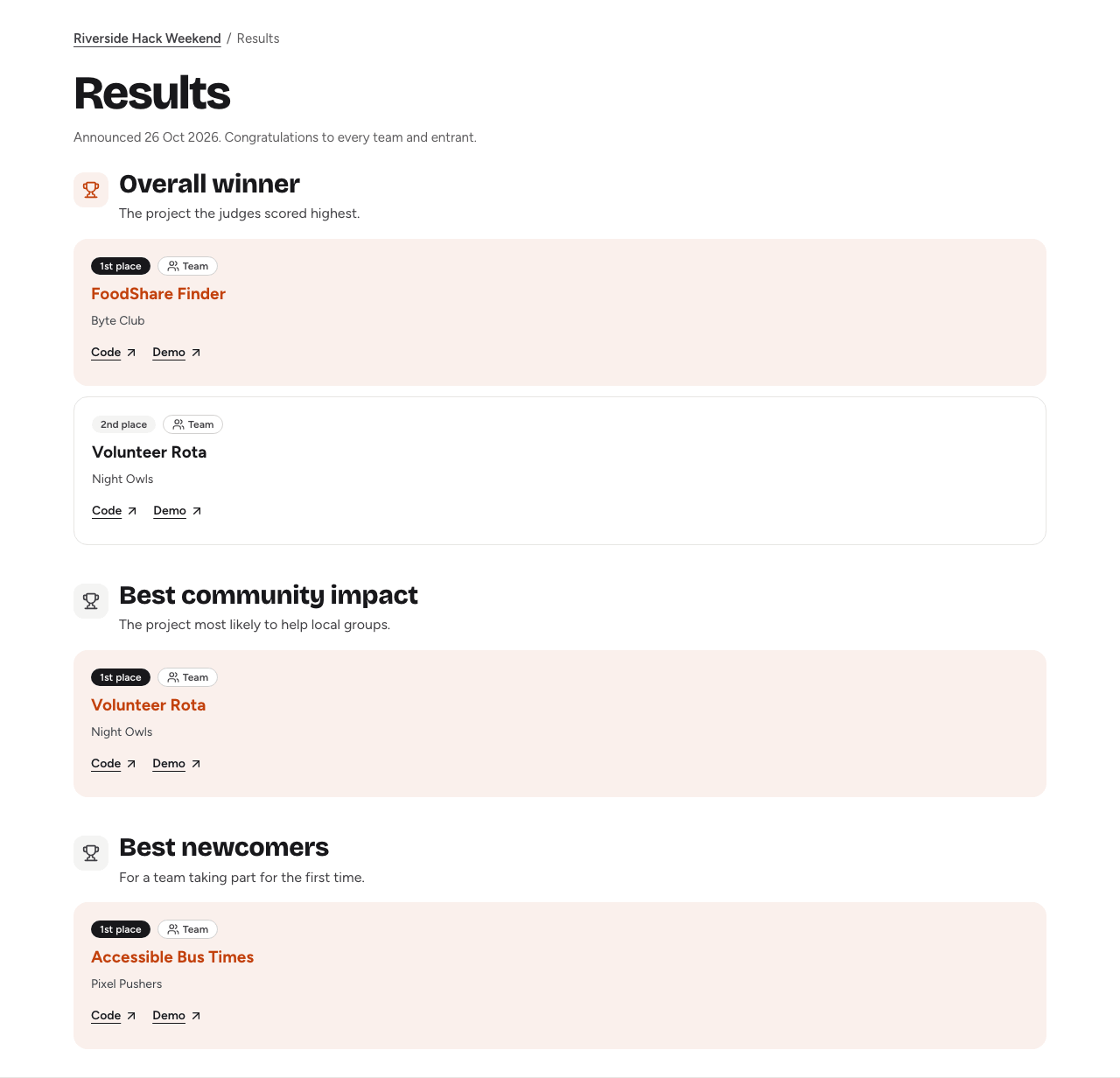
The event's results page goes live, showing each award with its winning projects' titles, team or entrant names, and links. Scores, ranks and judges' comments are never shown.
Emailing entrants about the resultsLink to this section
Results emails are off unless you turn them on. In Judging → Setup, under Hackathon emails, turn on Email entrants when results are published and choose Save settings. Publishing then emails every confirmed registration once to say the results are out (on a team event, each member gets their own). With the switch off, the results page goes live without emailing anyone. The publish confirmation tells you which will happen and how many entrants will be emailed.
If you published without emailing and change your mind, turn the switch on and save. A Send results email now… button then appears in the Results page card. It shows how many entrants will be emailed before you confirm, and it can only be sent once.
Choose View results page to see it as guests do. The results page follows the event page's visibility, so a private or invite-only event keeps its results private too. If more than 10 winners are listed, visitors can search them.
Publishing also adds award badges to the public project gallery, with a filter for award winners.
Changing published resultsLink to this section
- Changes on the Awards section show on the live results page straight away.
- Disqualifying a winning project takes its awards away immediately. See Submissions and the gallery.
- Unpublish… hides the results page again. Announcement emails that haven't gone out yet are cancelled; ones already delivered can't be recalled.
- If you publish again with the email switch on, only people whose email was cancelled are emailed. Nobody gets the announcement twice.
To reopen judging, unpublish the results first.
Good to knowLink to this section
- How the raw score is worked out is in Judges, rubric and scoring.
- If results look thin, check Assigning judges and tracking progress for projects below target before closing judging.