Custom check-in lists
Track swag, meals and workshops alongside entry.
Entry isn't the only thing you hand out on the day. Custom check-in lists let you track swag, meals, workshops or anything else alongside entry: "Swag collection", "Lunch – Day 1", "Workshop B". Each list records who has collected it, separately from whether they came through the door.
Setting up a listLink to this section
- Open the event and choose the Check-in tab.
- In the Check-in lists card, choose Manage lists.
- Under New list, type a name such as "Swag collection".
- Turn on Only after entry check-in if guests must come through the door first, for example so nobody collects a lunch voucher without arriving.
- Choose Add list, then Done.
An event can have up to 30 lists, and each name can be up to 60 characters. Two open lists can't share a name.
The Check-in lists card then shows each list with how many guests have collected it out of those eligible, such as "42 / 120 collected".
Checking guests into a listLink to this section
- On the Check-in tab, choose Open next to the list. Or open the check-in desk and choose the list from the tabs at the top: Entry is the normal door desk, followed by each of your lists.
- Scan a ticket, paste a ticket link or code under Manual code, or use Search guests.
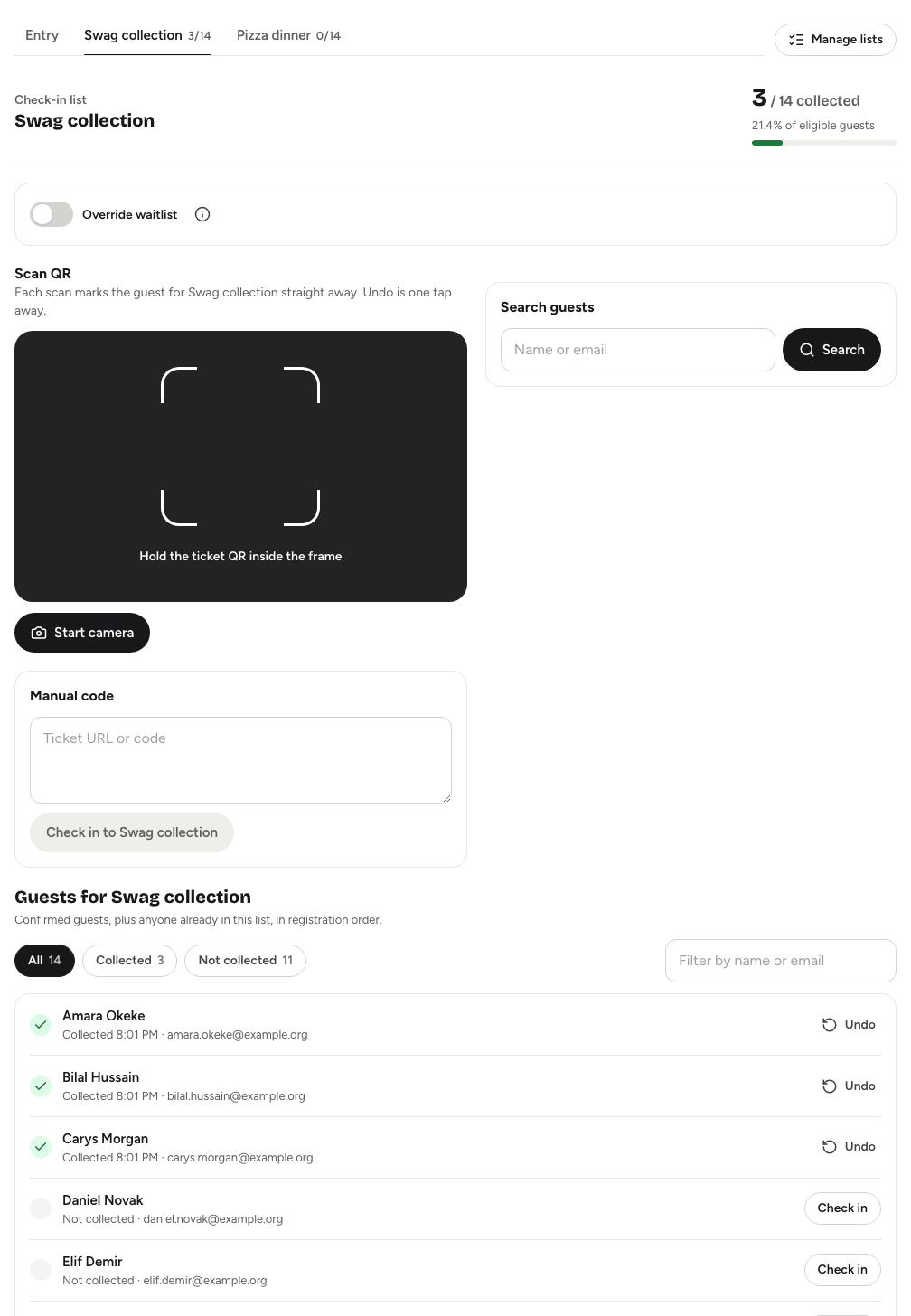
Unlike entry, a list doesn't ask you to confirm: each scan marks the guest for the list straight away, with a beep and a buzz. What you see next depends on the guest:
| You see | What it means |
|---|---|
| "Checked in to Swag at 10:42" | Done. Choose Next guest, or Undo if it was a mistake. |
| "Already checked in to Swag at 10:42" | They've already collected it. Nothing changes. |
| On the waitlist | The guest is waitlisted. Choose Admit anyway to add them, or Scan again. |
| "Not added to Swag" | They aren't eligible, with the reason, for example they haven't been checked in at entry yet. |
The eligibility rules are the same as at the door: confirmed guests are accepted, waitlisted guests need Override waitlist (or Admit anyway), and guests waiting for approval or declined are refused.
Seeing who has collectedLink to this section
Under Guests for your list, you'll find confirmed guests plus anyone already in the list, in the order they registered. Use All, Collected and Not collected to filter, or type in Filter by name or email. Each guest has Check in or Undo next to them. Choose Show more to load more guests.
A guest marked "Not checked in at entry" can't collect from a list that needs entry check-in first.
Renaming, reordering and archivingLink to this section
Open Manage lists again to:
- change a list's name and choose Save name
- move lists up or down, which changes the order of the tabs on the desk
- switch Only after entry check-in on or off
- choose Archive when a list is finished
Archived lists keep their check-ins and stay in the attendee export, but they're read-only and hidden from the desk. Choose Restore under Archived to bring one back. Lists can't be deleted.
Where the results show upLink to this section
- The Guests tab shows the lists each guest has collected.
- The attendee CSV has a "Check-in:" column for each list, with the time or blank. See Exporting guest data.
Good to knowLink to this section
- Checking into a list never changes a guest's entry check-in or their ticket.
- Lists need a connection. They aren't available in offline mode or at the door station.
- Lists are for one-off events. They aren't available on the dates of a recurring series.