Building your event page
Sections, highlights, venue, FAQs and resources.
Every event has its own public page: the cover, title and register button at the top, followed by sections such as About, Programme, Speakers, Venue and FAQ. You build it from the event dashboard, and guests see it once the event is live.
Where to edit your pageLink to this section
Open the event and choose the Event page tab. It has three sub-tabs:
| Sub-tab | What you change there |
|---|---|
| Details | Title, tagline, logo, the About the event text, cover image, dates, location and publishing. See Event details. |
| Page & programme | The page colour, which sections show, and the content inside them: highlights, speakers, sponsors, resources and FAQs. |
| Registration form | The questions guests answer when they sign up. See The registration form. |
Page & programme opens with a Programme card showing how many sessions, tracks and speakers you have, with Open schedule to build the programme. Use Open public page at the top to see the page as guests do; it opens in a new tab.
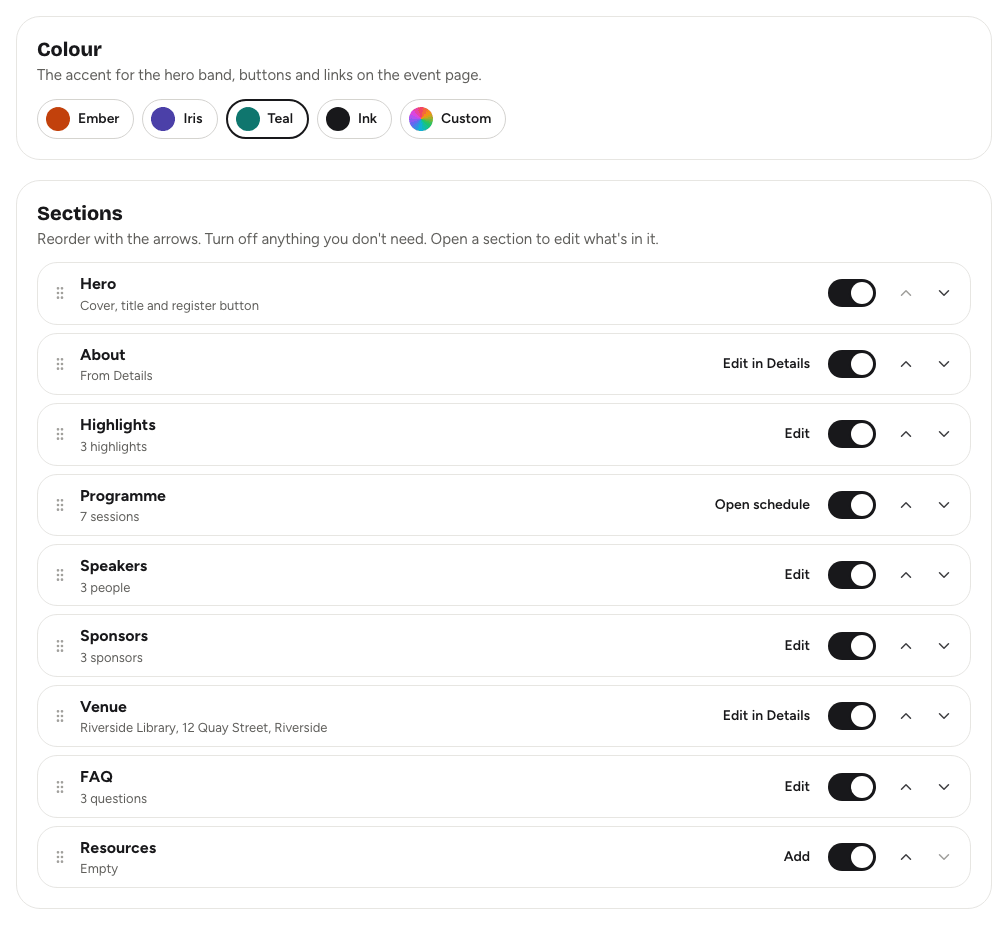
SectionsLink to this section
The Sections card lists every part of the page with a short note of what is in it, for example "3 questions · 1 not published" or "Empty".
| Section | What it shows |
|---|---|
| Hero | Cover, title and register button. It always shows. |
| About | The About the event text from Details. |
| Highlights | Short selling points, each with an optional icon or emoji. |
| Programme | Your published sessions, with a link to the full programme. The public page titles this section Schedule. See Building the programme. |
| Speakers | Speaker cards that link to each speaker's own page. |
| Sponsors | Sponsors with their logo and tier. The public page titles this section Partners. |
| Venue | The location and map link from Details, with a map. Not shown for online events. |
| FAQ | Questions and answers. |
| Resources | Links to slides, guides or anything else guests should open. |
Use the switch on a row to show or hide that section. Next to each row is a shortcut: Add or Edit jumps to the section's content further down, Edit in Details opens the Details sub-tab, and Open schedule opens the programme.
Changes to the colour and the section switches aren't saved straight away. A bar appears at the bottom of the screen with the number of unsaved changes: choose Save changes, or Discard to go back.
Adding highlights, FAQs and resourcesLink to this section
Highlights, speakers, sponsors, resources and FAQs each have a card under Section content. Every item is saved on its own, so you don't need the bottom bar for them.
- Under Section content, find the right card and choose Add Highlight, Add FAQ or Add Resource.
- Fill in the form:
- A highlight has a Name, an optional Icon (a short icon or emoji) and a Description.
- An FAQ has a Question and an Answer, which you can format with the text toolbar.
- A resource has a Name, a Resource link (the public web address guests open) and a Description.
- Choose its Visibility (see below).
- Choose Add Highlight, Add FAQ or Add Resource at the bottom of the form.
To change an item, choose Edit on its row and then Save changes. Remove deletes it after you confirm; this can't be undone.
Speakers and sponsors work the same way and have a few more fields. See Speakers and sponsors.
Published, Draft and HiddenLink to this section
Every item, and every programme session, has a Visibility:
- Published: shown on the public page.
- Draft: kept off the public page while you work on it.
- Hidden: kept off the public page, for something you've taken down but may want back.
Draft and Hidden look the same to guests: the item simply isn't there. Each row shows its visibility as a chip, so you can see at a glance what is live.
ColourLink to this section
The Colour card sets the accent used for the hero band, buttons and links on the event page. Choose one of the presets, or Custom to pick any colour, then choose Save changes in the bar at the bottom.
Good to knowLink to this section
- You can build the whole page while the event is a draft. Guests can't see it until the event is live; see Publishing and visibility.
- While the event is a draft, people who can edit the page or the programme can still open the public page to preview it. Draft and Hidden items stay out of the preview too.
- The arrows on each section row change the order of the list, but the public page currently shows sections in a fixed order: About, Highlights, Schedule, Speakers, Partners, Venue, FAQ, Resources, Crew. The Crew section is managed from Guests → Crew; see Event crew.
- Items appear on the page in the order you added them.