Two-step verification
Protect your account with an authenticator app and recovery codes.
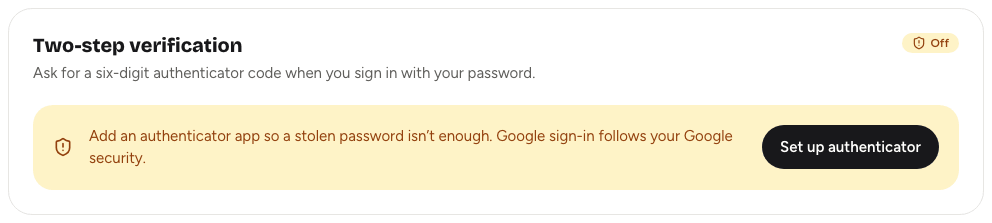
Two-step verification adds a second check when you sign in with your password: a six-digit code from an authenticator app on your phone. Someone who learns your password still can't get in without it. It's strongly recommended for anyone who runs events, because your account can reach guest lists and contact details.
You can use any standard authenticator app, such as Google Authenticator, Microsoft Authenticator, 1Password or Authy.
Turn it onLink to this section
- Open your account menu and choose Account settings, then the Security tab.
- In Two-step verification, choose Set up authenticator.
- Scan the QR code with your authenticator app. If you can't scan it, type the Manual key shown beside it into the app instead.
- Enter the six-digit code the app shows in Six-digit code and choose Verify and enable.
- Yuyu shows ten one-time recovery codes. Save them somewhere safe, such as a password manager or a printed copy.
- Choose I saved them — sign in again, then sign in with your password and a code from the app.
Turning it on signs you out of every browser and the Yuyu mobile app, so each one has to sign in again with a code.
Signing in with a codeLink to this section
After you enter your email and password, Yuyu shows Verify it's you.
- Open your authenticator app and find the Yuyu entry.
- Type the current six-digit code into Authenticator or recovery code.
- Choose Verify and sign in.
Codes change every 30 seconds. If one is rejected, wait for the next code and try again, and check that your phone's clock is set automatically. To sign in as someone else, choose Use a different account.
Recovery codesLink to this section
Recovery codes get you in when you don't have your phone. Type one into the same Authenticator or recovery code field instead of an app code.
- Each code works once. Cross it off after using it.
- You get ten codes when you turn two-step verification on. To get a fresh set, turn it off and on again.
- Yuyu can't show your codes again after setup, so keep them somewhere you'll find them.
Turn it offLink to this section
- Go to Account settings → Security.
- In Two-step verification, enter a current authenticator code or an unused recovery code in Authenticator or recovery code.
- Choose Disable MFA, then confirm with Disable MFA in the dialog.
Yuyu signs you out everywhere, and from then on password sign-in needs only your password.
Google sign-in and two-step verificationLink to this section
Two-step verification protects password sign-in. When you use Continue with Google, Google's own security (including Google's 2-Step Verification) protects the sign-in instead, and Yuyu doesn't ask for a code. If your account only signs in with Google, turn on 2-Step Verification in your Google account.
If you lose your phoneLink to this section
- Sign in with a recovery code, then turn two-step verification off and set it up again on your new phone.
- If your account is also linked to Google, you can sign in with Continue with Google, which doesn't ask for a Yuyu code.
- A password reset does not turn two-step verification off.
If you have no phone, no recovery codes and no linked Google account, you can't remove two-step verification yourself. Contact the person who runs your Yuyu instance.