Run your first event
From a new account to a published event with guests checked in at the door.
This walkthrough takes you from a brand-new account to a published event with guests checked in at the door. Each step links to a fuller article when you want more detail.
1. Create your accountLink to this section
- Choose Sign in in the site header, open the Create account tab, and enter your name, email and a password of at least 12 characters.
- Open the verification email and choose Confirm email on the page it opens.
- Sign in.
You must confirm your email before you can create events. See Creating an account and signing in for Google sign-in and other details.
2. Create your organisationLink to this section
Everything you run in Yuyu belongs to an organisation. Your dashboard shows a short setup checklist that starts here.
- On your dashboard, choose Create organisation.
- Enter a Name and a Web address. The web address becomes your organisation's public page, so keep it short: lowercase letters, numbers and dashes.
- Optionally add a Description and a Logo, then choose Create organisation.
You become the organisation's owner. See Creating an organisation.
3. Create the eventLink to this section
- In your organisation's dashboard, choose New event.
- Basics: give the event a Title and fill in About the event. Tags are optional.
- Schedule: set the Start, End and Timezone. The start must be in the future.
- Location & sign-ups: enter the venue in Location, or turn on Online event and paste the meeting link. You can add a Map link for in-person events.
- Choose Create.
Yuyu creates the event as a Draft and opens its event dashboard. Nobody else can see it yet, so take your time. See Creating an event.
4. Make it look rightLink to this section
Open the Event page tab to add a cover photo, check the details, and decide what you ask people when they register.
- Details holds the cover image, schedule, location and the Publishing settings.
- Page & programme builds the public page: highlights, sessions, speakers, sponsors and FAQs.
- Registration form adds questions beyond name and email.
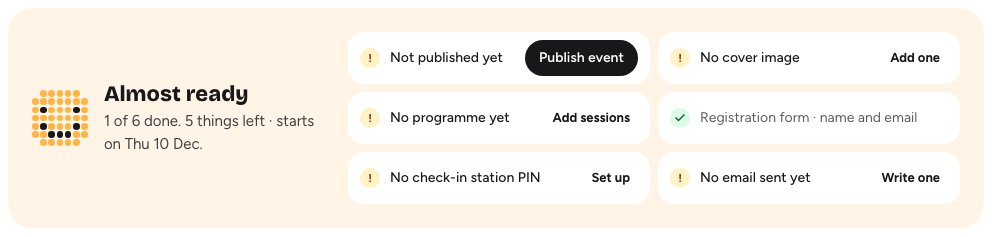
The Overview tab shows a readiness checklist (for example "No cover image" or "No programme yet") with a shortcut to fix each item.
5. Publish and shareLink to this section
New events are open to everyone with unlimited places. To change that before you publish, open Event page → Details → Publishing: you can make the event findable only by link or by invitation, ask to Approve each sign-up, and Limit the number of spots. See Publishing and visibility and Capacity, waitlists and approvals.
When you're ready:
- On the Overview tab, find "Not published yet" in the checklist and choose Publish event. (You can also choose Live under Who can see this event? in the Publishing section and save.)
- Copy the event's address and share it. You can also create a short link from the Overview tab.
See Sharing your event for short links, social cards and the embeddable card.
6. Look after your guestsLink to this section
As people register, they appear in the Guests tab. From there you can approve or decline sign-ups, give waitlisted people a place, add guests by hand, and export the list. The Emails tab sends reminders and updates to the people coming.
Every guest with a confirmed place gets an email with a link to their ticket and its QR code.
7. Check people inLink to this section
- On the day, open the Check-in tab and choose Open check-in on the phone, tablet or laptop you'll use at the door.
- Scan each guest's QR code, paste their ticket link, or search by name.
- If the venue Wi-Fi is unreliable, choose Download guest list for offline beforehand so the desk keeps working without a connection.
Volunteers without a Yuyu account can use the PIN-locked door station instead. See The check-in desk.
8. Follow upLink to this section
After the event, open a feedback form, optionally with certificates, and see how it went in Analytics. Owners and admins can download a post-event report once the event has ended.