Sharing your event
Event links, short links, social cards and the embeddable event card.
Once your event is live, get the word out. Every event has its own link, and you can add a short link, rely on a tidy preview when the link is posted in chats and social media, and put a register button or the whole event page on your own website.
Make sure the event is live first: until then, guests who open the link see nothing. See Publishing and visibility.
Your event linkLink to this section
An event's link is your organisation's address followed by the event's address, for example /riverside-coders/spring-meetup.
To copy it:
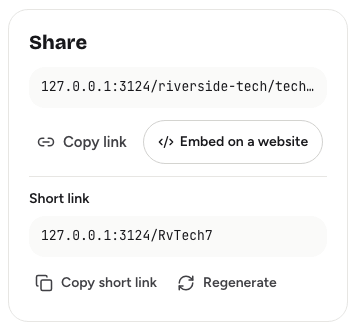
- On the event's Overview tab, the Share card shows the link. Choose Copy link.
- In the event header, choose the link button next to View page.
The copy buttons appear once the event is live. Before that, the Share card still shows the link, with a note that guests can open it once the event is published.
Who can actually open the link depends on Who can find it?. An invite-only event's link only works for people you invited.
Short linksLink to this section
A short link is a compact address such as /aB3x9Kq, handy for posters, slides and QR codes.
- Open the event's Overview tab.
- In the Share card, choose Create short link.
- Choose Copy short link to copy it.
A short link:
- Only works while the event is live. For a draft or offline event, it behaves like a link that doesn't exist, so it never gives away a hidden event.
- Keeps working if you change the event address. It always points at the current one.
- Still follows the event's rules. Invite-only events stay invite-only.
To replace a short link, for example if it was shared somewhere it shouldn't have been, choose Regenerate, then Regenerate again to confirm. The old short link stops working straight away.
Link previewsLink to this section
When you paste a live event's link into a chat app or social network, it shows a preview with the event's title, the start of its description, and an image with the title, your organisation and the date.
Invite-only, draft and offline events show a plain Yuyu preview instead, so their details stay private.
Search engines only list events that are live and set to Everyone.
Put it on your websiteLink to this section
- Open the event's Settings tab, or choose Embed on a website in the Overview tab's Share card.
- In Put it on your website, pick one:
- A register button: shows "Register for" and your event's title, and opens the event page in a new tab. Choose Copy button code.
- The whole event page: shows the event page, including registration, inside your site. Choose Copy embed code.
- Paste the code into your website's HTML.
Choose Show code under either option to see the code before copying it.
The embedded page follows the same rules as the event page: drafts, offline events and invite-only events don't show to people who can't see them.
Change the event addressLink to this section
The event address is the part of the link after your organisation's address. Yuyu makes it from the title when you create the event.
- Open the event's Settings tab.
- In Event address, type the new address. Use lowercase letters, numbers and single hyphens, 2 to 64 characters.
- Choose Update.
Each address can only be used by one event in your organisation.
Your organisation's public pageLink to this section
Your organisation's page lists all its upcoming events that are live and set to Everyone. Share it once and people can always see what's coming up. See Organisation settings.