Filters and saved views
Filter long lists, save the views you use and share them with your team.
Long guest lists are easier to work with when you can jump straight to the people you need: everyone on the waitlist, guests who haven't arrived yet, or teams still waiting for approval. Filters narrow the list, and saved views let you keep a set of filters and come back to it in one click, or share it with the rest of your team.
Filters and the address barLink to this section
On the Guests tab, the People and Teams sub-tabs each have filter chips, a search box and, on People, drop-downs for the kind of registration and team. Once you've sent an attendance confirmation, People also has a drop-down for guests' answers (Coming, Not coming, No reply, Not asked), and saved views and links keep it too. For what each filter does, see The guest list and Managing teams.
The filters you pick are kept in the page address. That means:
- Reloading the page keeps your filters.
- A bookmark or a link you paste to a teammate opens the same filtered list.
- Switching to another tab or sub-tab clears them.
The Views menuLink to this section
Each list has a Views button next to the export buttons. When a view is applied, the button shows its name, for example Views · Waitlisted.
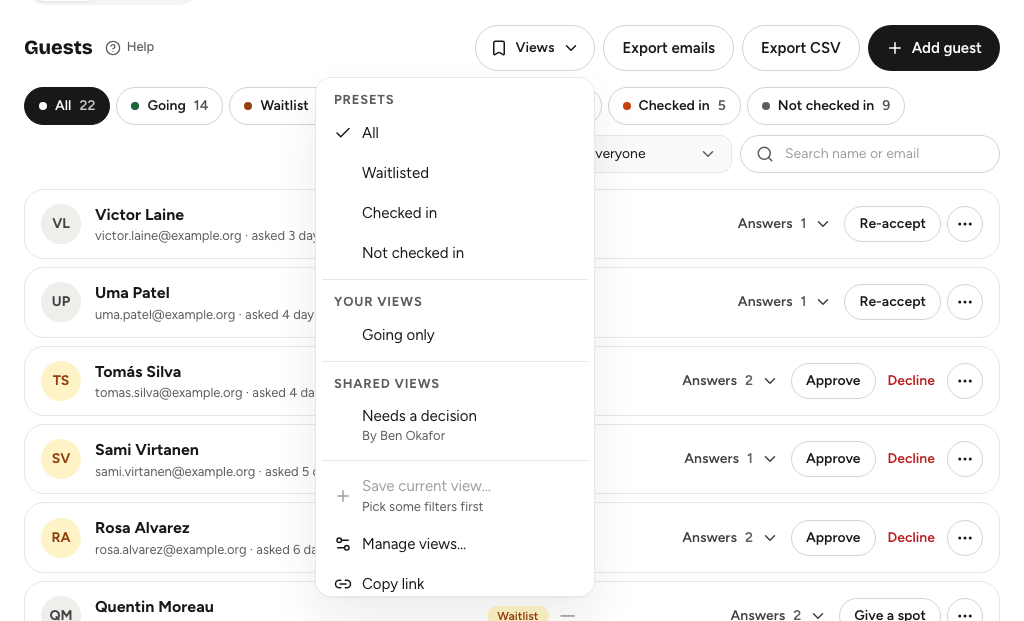
The menu has up to four groups:
- Presets: built-in views that are always there.
- Your views: views you saved. A Shared label shows the ones your team can see.
- Shared views: views teammates saved and shared, with the name of the person who made each one.
- Actions: Save current view…, Manage views…, Copy link, and Clear filters once a filter is applied.
PresetsLink to this section
| List | Presets |
|---|---|
| People | All, Waitlisted, Checked in, Not checked in (going but not yet at the door) and, on team events, Solo |
| Teams | All, Incomplete, Pending approval, Looking for members |
Saving a viewLink to this section
- Set the filters and search you want on People or Teams.
- Open Views and choose Save current view….
- Give the view a Name of up to 60 characters.
- Tick Share with the team if everyone who can open this list on this event should see it.
- Choose Save view.
Save current view… is greyed out until you've picked at least one filter or typed a search.
Views belong to one list on one event. A view saved on People doesn't appear on Teams, and views don't carry over to other events.
Managing your viewsLink to this section
Open Views and choose Manage views…. For each view you made, you can:
- Turn Share on or off.
- Rename it with the pencil button.
- Delete it with the bin button, after you confirm.
Views other people shared appear in the list too, marked with who made them. Only the person who made a view can rename or re-share it.
Copying a linkLink to this section
Choose Copy link to copy a link to the list with its current filters. It's the quickest way to point a teammate at, say, the 12 people still waiting for approval, without saving a view.
Good to knowLink to this section
- Each person can keep up to 50 views per list. A menu shows up to 100 views, your own first.
- Views store filters, not people. A view always shows the current list, so "Waitlisted" changes as people join or leave the waitlist.
- Exports use whatever filters are showing. Apply a view, then choose Export CSV to download just those guests. See Exporting guest data.
- The judging lists for hackathons have their own views and presets. See Assigning judges and tracking progress.