Feedback forms
Collect anonymous or verified feedback after your event.
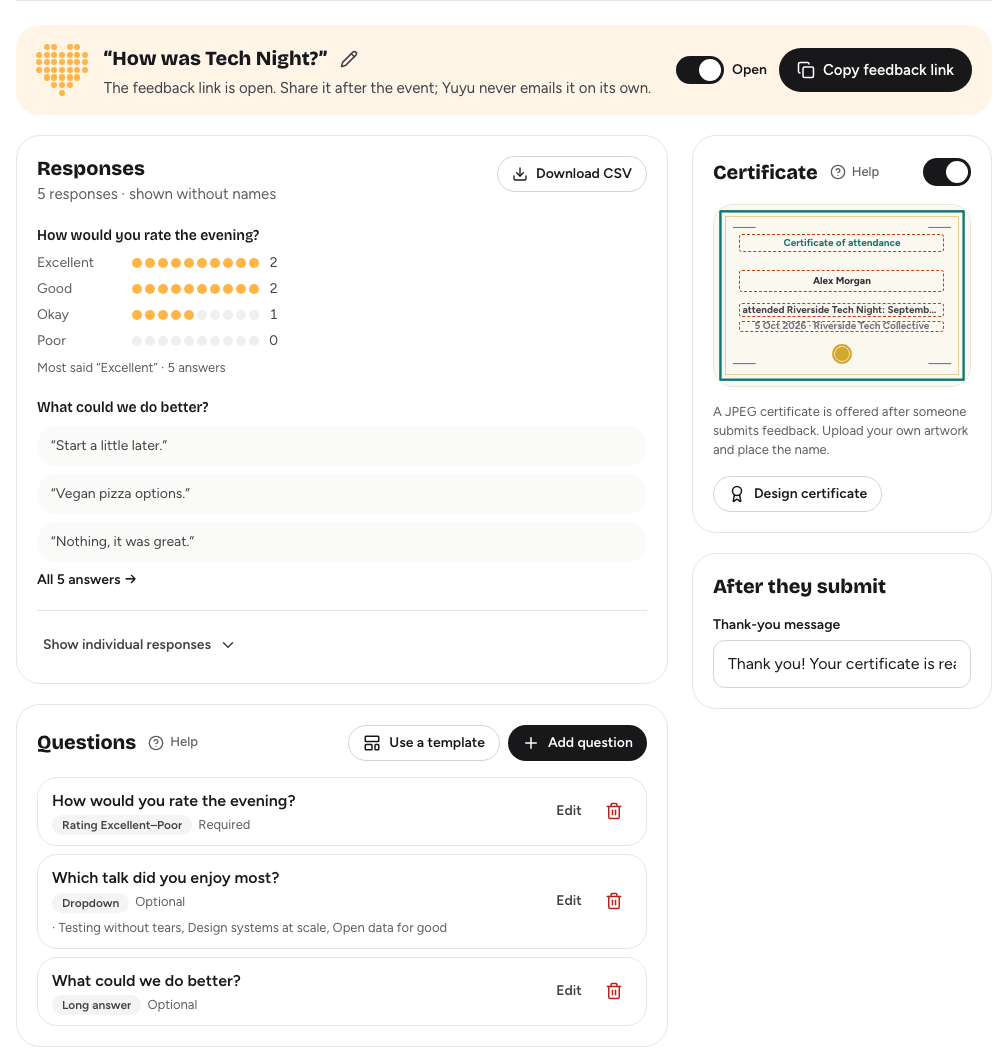
A feedback form tells you what worked and what to change next time. Each event has its own form on the Feedback tab. You choose the questions, open the form when you're ready, and share the link with your guests. Responses are summarised for you, without names.
Setting up the formLink to this section
- Open the event and choose the Feedback tab.
- Choose Use a template and pick one, or choose Add question to start from scratch.
- Change the form's title with the pencil button next to it, if you like. It starts as "Event feedback".
- Under After they submit, write the Thank-you message guests see after sending.
- Choose Save changes in the bar at the bottom.
TemplatesLink to this section
| Template | What it asks |
|---|---|
| Quick pulse | An overall rating and one optional comment. |
| Event review | Overall rating, what was most valuable, how well it was organised, whether they'd recommend it, and what to improve. |
| Session & speaker review | Content quality, how clear the speakers were, a key takeaway, and topics for next time. |
A template replaces any questions nobody has answered yet, and closes the form so you can review it before guests see it. You can't apply a template once the form has responses.
QuestionsLink to this section
Choose Add question, write the Question, pick an Answer type and tick Required if it must be answered. The answer types are Short answer, Long answer, Dropdown, Pick several, Pick one, Yes / no and Number. For a dropdown or a pick list, type the choices in Options (comma separated). A form can have up to 100 questions.
Once a question has answers, you can still reword it, but you can't change its answer type or options, and you can't delete it. That keeps earlier responses meaning what people meant.
Opening and sharing the formLink to this section
The form is closed until you open it. When you're ready, usually at the end of the event:
- Make sure the form has at least one question.
- Turn the switch at the top of the Feedback tab to Open.
- Choose Copy feedback link.
- Share the link with your guests.
The form is only available while the event is live. Turn the switch back to Closed to stop taking responses.
Anonymous or verifiedLink to this section
What respondents are asked depends on whether you offer certificates:
- Certificates off. Feedback is anonymous. Nobody is asked for an email address, and responses aren't linked to a registration. People can respond more than once.
- Certificates on. Respondents enter the Email you registered with, which must match a confirmed registration for the event. After sending, they can download a certificate with their name on it. See The certificate designer.
Choose anonymous feedback if honest answers matter most, and certificates if you want to reward people for coming.
Reading responsesLink to this section
The Responses card at the top of the tab shows how many responses there are, always without names:
- Rating questions show how many people chose each answer, with the average for number scales or the most common answer for word scales.
- Written answers show the most recent few, with a link to read them all.
- Show individual responses lists every response, 25 at a time.
Choose Download CSV to get every response in a spreadsheet. Downloads are recorded in the organisation's audit log.
Good to knowLink to this section
- Responses also feed the Gave feedback step on the Analytics tab and the post-event report. See Analytics.
- Guests' view of the form is described in Feedback and certificates.