Inviting and managing members
Invite people, change roles and remove members.
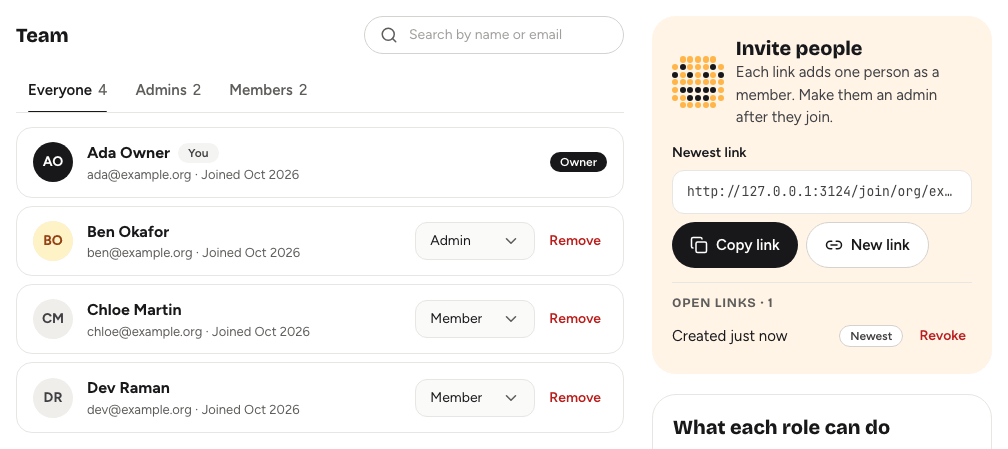
The Members page lists everyone in your organisation and their role. Owners and admins use it to invite new people with a link, and owners also change roles. Open it from Members in the sidebar.
Invite someoneLink to this section
Invitations are links, not emails. Each link works once and adds one person as a Member.
- Open Members.
- In the Invite people card, choose Create link. If there's already an open link, choose New link to make another.
- Choose Copy link and send it to the person however you like: chat, email or a message.
- They open the link, sign in or create an account, and choose Accept invite. They land on your organisation's dashboard.
Each link expires after 7 days if no one uses it. Make one link per person: once someone accepts it, it stops working for anyone else.
Making someone an adminLink to this section
Everyone joins as a Member. If they should help run events, the owner can make them an admin after they join. See Change a role.
Revoking a linkLink to this section
Under Open links, every unused link is listed with when it was created. Choose Revoke next to one, then Revoke link, and it stops working straight away. Revoke links you sent to the wrong person or no longer need.
Find someoneLink to this section
The Team list shows each person's name, when they joined and their role. Owners and admins also see email addresses.
- Use the tabs to show Everyone, Admins (owners and admins) or Members.
- Search by name. Owners and admins can also search by email.
The cards at the top show how many people are in the organisation, how many joined in the last 30 days, and (for owners and admins) how many invite links are still open.
Change a roleLink to this section
- Find the person in the Team list.
- Pick Admin or Member from the role menu next to their name.
The change takes effect straight away. The owner's own role can't be changed.
For security, Yuyu only allows role changes within 10 minutes of signing in. If you see "For security, sign in again before changing member roles", sign out, sign back in and try again.
Remove someoneLink to this section
- Find the person in the Team list and choose Remove.
- Choose Remove member to confirm.
They lose access to the organisation and its events immediately. Admins can remove people with the Member role. The owner can remove anyone except themselves. Nobody can remove the owner.
Removing someone from the organisation doesn't remove any event co-organiser access they hold. Check the event's Settings tab if they should lose that too. See Event co-organisers.
Good to knowLink to this section
- To leave an organisation yourself, use Account → Organisations. See Your data and memberships.
- Someone helping with just one event doesn't need to join at all. Make them a co-organiser of that event instead.
- Long teams are split into pages of 100 people, with Previous and Next below the list.