Event details
Title, dates, time zone, location, online events, accent colour and cover.
The Details form holds the facts about your event: its title and introduction, when and where it happens, its cover image, and who can see it. Open the event and choose Event page → Details.
The look of the event page, such as its accent colour and sections, lives next door in Page & programme. See Accent colour below and Building your event page.
Edit the detailsLink to this section
- Open the event and choose Event page → Details.
- Change what you need. A bar appears at the bottom showing you have unsaved changes.
- Choose Save changes in that bar. Discard puts everything back as it was.
Nothing changes for guests until you save. If you try to leave with unsaved changes, Yuyu asks you first.
At the top, Public URL shows the event's link, with Open event page to see it as guests do.
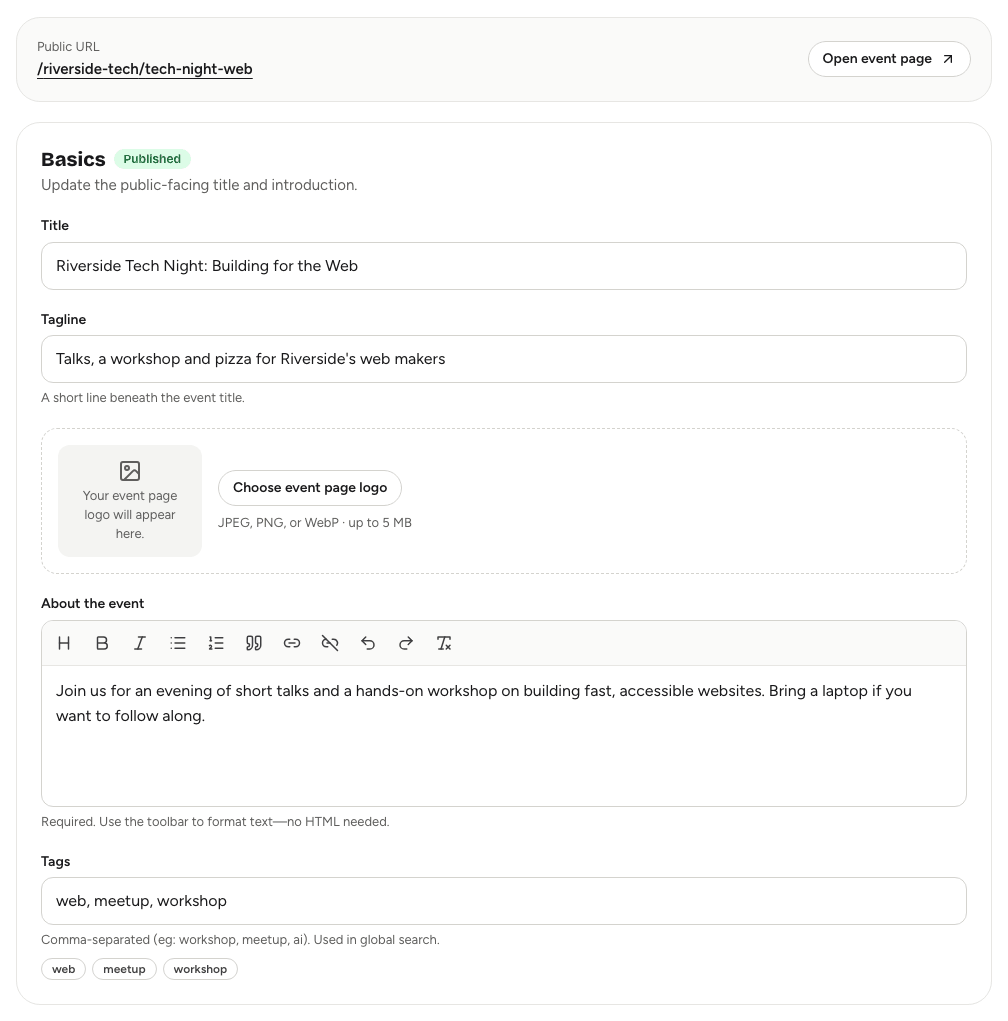
BasicsLink to this section
- Title: required, up to 200 characters. Changing the title doesn't change the event's link; to do that, see Sharing your event.
- Tagline: a short line shown beneath the title on the event page.
- Event page logo: an optional logo for this event's page, separate from your organisation's logo. JPEG, PNG or WebP, up to 5 MB.
- About the event: required. The introduction on your event page. Use the toolbar to format it; no HTML needed.
- Tags: comma-separated words, such as workshop, meetup, ai. Up to 12. Tags help people find the event in search.
Cover imageLink to this section
The cover is the wide banner at the top of your event page, and also appears on event cards and when the link is shared. Choose Choose image, drop a photo onto the box, or paste one. It opens in the photo editor so you can crop and adjust it.
Once there's a cover, use Edit to re-crop it, Replace to pick another photo, or Remove to take it off. See The cover photo editor.
ScheduleLink to this section
- Start and End: required. The end must be after the start.
- Timezone: the clock the start and end are on. Guests see times in this time zone.
If you change the time zone, the clock times you typed stay the same and are read in the new zone. For example, 7:00 pm stays 7:00 pm, which is a different moment for guests elsewhere.
LocationLink to this section
- Online event: turn on for a virtual event. Guests see "Online event" on the page.
- Location: the venue or street address, at least 3 characters. For an online event this becomes Online meeting link, which must be a full
https://orhttp://address. Guests get the meeting link on their ticket. - Map link: optional, for in-person events only. Paste a Google Maps share link so it opens cleanly on phones. Guests can open it from their ticket.
PublishingLink to this section
The last card decides who can see the event, who can find it and sign up, and how many places there are. It has its own article: Publishing and visibility.
Accent colourLink to this section
The accent colour is used for the hero band, buttons and links on your event page.
- Open Event page → Page & programme.
- In the Colour card, choose a preset (Ember, Iris, Teal or Ink), or Custom to pick your own.
- Choose Save changes in the bar at the bottom.
With Custom, drag in the colour square and hue slider, type a hex code such as #0F766E, or, where your browser supports it, pick a colour from anywhere on your screen. A sample shows how buttons and links will look. Text and links use a darker shade where needed so they stay readable.
Owners, admins and co-organisers with Edit details can change the colour.
Good to knowLink to this section
- Title, dates, location and cover changes show on the event page as soon as you save. Guests who already registered aren't emailed automatically; tell them about important changes from the Emails tab. See Emailing your guests.
- If Yuyu says the capacity can't be lower than the current attendance, more people already have a place than the number you entered.