Your ticket
Open, download and use your QR ticket, add it to your calendar, or cancel.
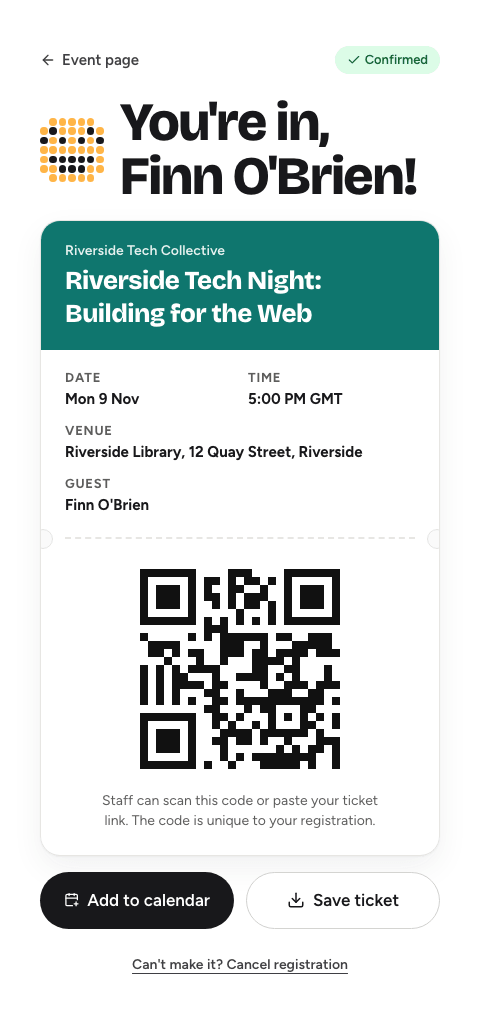
Every registration has its own ticket page. It shows your status, the event details and, once your place is confirmed, the QR code you show at the door. The ticket link is private to you: anyone with it can see your ticket, so don't post it publicly.
Open your ticketLink to this section
You can reach your ticket in any of these ways:
- the View Your Ticket & QR Code button in your confirmation email
- View ticket straight after registering
- the event page in the same browser you registered in, which shows View your ticket
- Account settings → Registrations → View ticket, if you registered while signed in
What the ticket showsLink to this section
The top of the page shows your status:
| Status | What you see |
|---|---|
| Confirmed | "You're in", the event's date, time, venue and your name, and a QR code. |
| Waitlisted or Pending approval | The event details and "A scannable ticket will be available after this registration is confirmed." |
| Rejected | The organisers declined this registration. There's no QR code. |
| Checked in | You've been admitted. |
For an in-person event with a map link, choose the venue name to open the map in a new tab. Event page at the top takes you back to the event.
At the doorLink to this section
Show the QR code on your phone, or a saved or printed copy, to the person checking guests in. They can also paste your ticket link or find you by name.
If your ticket page is open when you're checked in, it updates by itself: the QR code tears away and the page shows You're checked in and the time. After that the QR code isn't shown again, because it has already been used.
Save it and add it to your calendarLink to this section
Once your place is confirmed:
- Save ticket downloads your ticket, with its QR code, as an image you can keep in your photos or print.
- Add to calendar opens Google Calendar with the event filled in. Your confirmation email also includes a calendar file for Apple Calendar, Outlook and other apps.
Cancel your registrationLink to this section
If you can't make it, cancel so your place can go to someone on the waitlist.
- Open your ticket and choose Can't make it? Cancel registration.
- Confirm with Yes, cancel.
If you registered while signed in, you can also choose Cancel registration next to the event in Account settings → Registrations.
If the organisers emailed to ask Are you still coming?, you can answer No, I can't make it from that email instead. See Answering "Are you still coming?".
Cancelling can't be undone. To go after all, register again, if there's still room.
You can't cancel:
- after you've been checked in
- a registration the organisers declined
- from someone else's account: a registration made while signed in can only be cancelled by that account, so sign in first
- a crew ticket: the organisers manage it, so ask them (see Joining an event's crew)
- as a team member: leave the team from your ticket instead, which cancels your registration (see Registering as a team)
If you've lost your ticketLink to this section
- Search your inbox (and spam folder) for the confirmation email from the event.
- Open the event page in the browser you registered with: it may still show View your ticket.
- If you registered while signed in, find it in Account settings → Registrations.
- Otherwise, ask the organisers. They can see your registration and help you at the door.
Team events and hackathonsLink to this section
On a team event, your ticket also shows your team, its leader and its members, and lets you leave the team or join one. See Registering as a team. If the event takes project submissions, your ticket has a Your project or Team project card. See Submitting a hackathon project.