Emailing your guests
Templates, placeholders, designs, drafts, tests and sending.
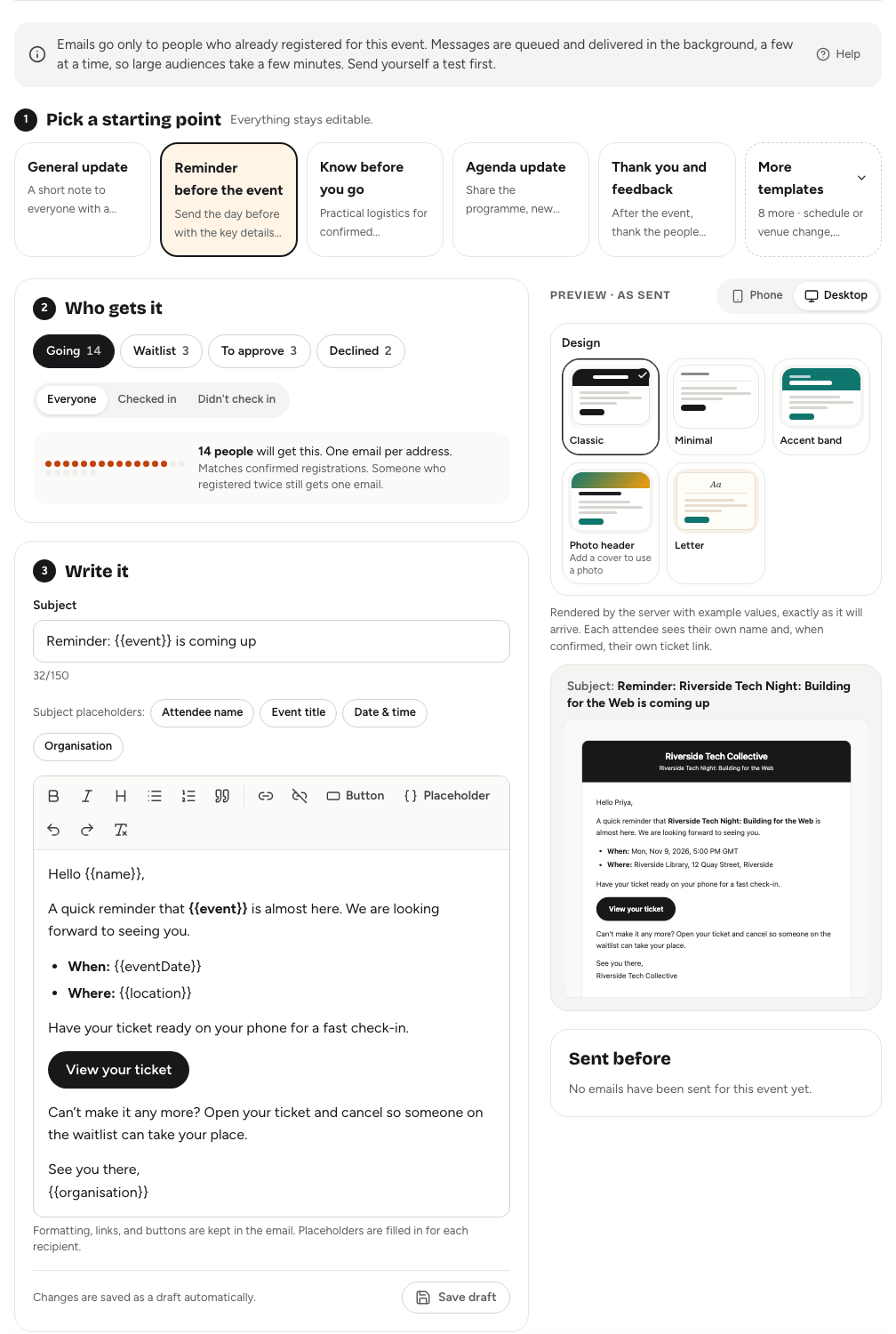
The Emails tab lets you write to the people registered for your event: a reminder the day before, joining instructions, a change of room, or a thank-you afterwards. You pick who gets it, start from a template, personalise it with placeholders, check the preview, and send.
Emails only go to people who have registered for this event. You can't email arbitrary addresses from here.
Sending an emailLink to this section
- Open the event and choose the Emails tab.
- Under Pick a starting point, choose a template. More templates shows the rest.
- Under Who gets it, choose one or more Registration status groups, and an Attendance option.
- Under Write it, edit the Subject and the Message.
- Check the Preview · as sent, and choose a Design.
- Choose Send a test to me and read the test in your inbox.
- Choose Send to and the number of people, tick the box to confirm you've checked the preview, and choose Send to again.
A bar counts down five seconds before the email goes. Choose Undo to stop it; nothing is sent. After that, the emails are queued and delivered in the background, a few at a time, so a large audience takes a few minutes. Emails can't be recalled once delivery starts.
TemplatesLink to this section
Templates fill in a subject, a message and a suggested audience. Everything stays editable.
The first cards are General update, Reminder before the event, Know before you go, Agenda update and Thank you and feedback. More templates adds Schedule or venue change, Waitlist update, Speaker announcement, Event cancelled, Pending approval update, Live update on the day, Sorry we missed you and Slides and resources.
Choosing who gets itLink to this section
Registration status groups match the guest list: Going, Waitlist, To approve and Declined. Pick any combination.
Attendance narrows the groups further: Everyone, Checked in, or Didn't check in. For example, Going with Didn't check in reaches people who had a place but didn't come.
The line under the audience says how many people will get the email. Each address gets one email, even if it appears more than once.
Writing the messageLink to this section
The message toolbar has bold, italic, headings, bulleted and numbered lists, quotes and links, plus two menus:
- Button adds a call-to-action button: View your ticket, Open the event page, Share your feedback, or Custom button… with your own text and link.
- Placeholder inserts details that are filled in for each person.
| Placeholder | Becomes |
|---|---|
{{name}} | The guest's name, or "there" if they didn't give one |
{{event}} | The event title |
{{eventDate}} | The start date and time, in the event's time zone |
{{location}} | The venue, or "Online" |
{{eventUrl}} | The public event page |
{{ticketLink}} | The guest's own ticket, for people going; otherwise the event page |
{{feedbackUrl}} | Your feedback form; open the form before sending this |
{{scheduleUrl}} | The public programme |
{{organisation}} | Your organisation's name |
In the subject you can use {{name}}, {{event}}, {{eventDate}} and {{organisation}}.
Designs and previewLink to this section
Design frames the same message in one of five looks: Classic, Minimal, Accent band (in the event's colour), Photo header (using the event's cover photo, so it needs a cover) and Letter. The preview is the real email, filled in with sample details, and you can switch between Phone and Desktop widths.
DraftsLink to this section
Your email is saved as a draft as you type, so you can close the tab and pick it up later on any device. The line under the message shows whether it's saved; choose Save draft to save straight away, or Discard draft… to start again.
Drafts are private: other organisers never see yours. Your draft is cleared once you send the email. Loading a template or reusing an old email asks before replacing your draft.
Reusing an emailLink to this section
Sent before lists recent emails for this event, with their audience and how many people they went to. Choose Reuse to load one, with its design and audience, into the editor.
Test emailsLink to this section
Send a test to me sends the current email to your own address, which must be verified. In a test, {{ticketLink}} opens your own ticket if you're going to the event, and otherwise the event page. Tests don't affect your draft.
Good to knowLink to this section
- Only guests who are going get a working ticket link. Everyone else's
{{ticketLink}}and View your ticket button opens the event page. - If a guest's status changes before their email is delivered so they no longer match the audience, they're skipped.
- If you send several emails in a short time, Yuyu asks you to wait before sending another.
- Some emails go out without you doing anything, such as tickets and approval decisions. See Automatic emails.
- If guests say an email never arrived, see Common problems.