The check-in desk
Scan tickets, type codes or search by name, and undo mistakes.
The check-in desk is where you let guests in on the day. It runs in the browser on any phone, tablet or laptop, so you don't need special hardware: scan the QR code on a guest's ticket, paste their ticket link, or find them by name.
Opening the deskLink to this section
- Open the event from your dashboard and choose the Check-in tab.
- Choose Open check-in.
- On a phone or tablet, choose Start camera under Scan QR and allow camera access when the browser asks.
The Check-in tab also shows when doors open (for example "Doors open in 2 hours", then "Happening now"), how many guests have arrived out of everyone going, and a short reminder of who gets in at the door.
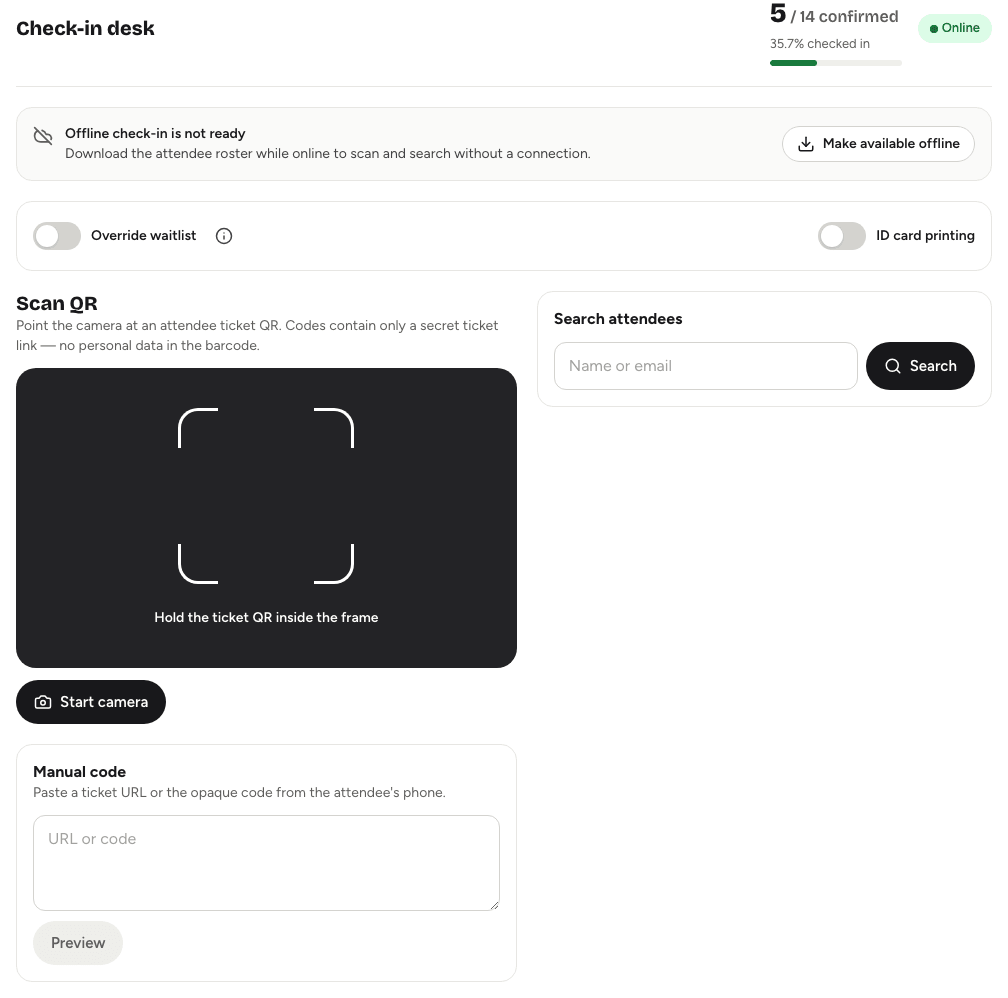
At the top of the desk you'll see how many confirmed guests are checked in, as a number and a percentage, and whether this device is Online or Offline.
Three ways to check someone inLink to this section
Scan QR. Point the camera at the QR code on the guest's ticket. The code only holds a secret ticket link, never personal details.
Manual code. If a screen is cracked or the camera won't start, paste the guest's ticket link or code into the Manual code box and choose Preview.
Search attendees. Type at least two letters of a name or email address (or a team name, on team events) and choose Search. Up to 12 matches appear, each with their status. Choose Check in next to the right person. Choose a name to see their Attendee details, including their registration answers.
Whichever way you use, Yuyu shows a Confirm check-in box with the guest's name, email, team and status. Check it's the right person, then choose Confirm or press Enter. The desk beeps, the phone buzzes, and a large Checked in panel shows the guest's name. Choose Next guest to clear it.
If you asked guests whether they're still coming, the confirm box, search results and attendee details show their answer as a chip (Coming, Not coming or No reply). It's for information only: a guest who said No but still has a confirmed place checks in as normal. See Attendance confirmation.
Crew members check in the same way. Their confirm box and details show a Crew chip and their food preference, and the Checked in panel says Event crew. See Event crew.
If the guest's ticket page is open on their phone, it updates by itself to show they're checked in.
Who gets inLink to this section
The desk follows the guest's registration status:
| Status | At the door |
|---|---|
| Confirmed | Checked in straight away. |
| Waitlisted | Blocked unless you turn on Override waitlist. |
| Pending approval | Blocked. Approve them in the Guests tab first. |
| Rejected or Cancelled | Blocked, with the reason shown. |
Override waitlist is a switch above the scanner. It only lets waitlisted guests in; people waiting for approval and declined registrations stay blocked even with it on. Turn it off again when you're done so nobody slips through by accident.
A ticket that has already been used shows Already checked in with the time, so a shared screenshot can't get a second person in.
Fixing mistakesLink to this section
Checked in the wrong person? Find them under Recent check-ins at the bottom of the desk and choose Undo (on a phone, Undo check-in). You can also search for them and choose Undo in the results. Undo needs a connection.
Recent check-ins lists arrivals newest first. Choose Load more to see older ones. The desk refreshes itself every 30 seconds while it's open, so several desks at the same door stay in step.
Every check-in and undo is recorded with who did it and when. Nothing is overwritten.
Downloading attendanceLink to this section
People who can manage the guest list see Download attendee CSV on the desk, and Export attendance on the Check-in tab. The file lists everyone who registered, with their check-in times. See Exporting guest data.
Good to knowLink to this section
- Keep the desk working when the Wi-Fi drops by saving the guest list first. See Checking in offline.
- To print a name badge as each guest arrives, turn on ID card printing. See Printing badges.
- To track swag, meals or workshops as well as entry, see Custom check-in lists.
- Guests who can't find their ticket can open it from their confirmation email. See Your ticket.