The event dashboard
A tour of the tabs you use to run an event.
Each event has its own dashboard where you do everything for that event: check what's left to do, manage guests, build the page, send emails, run the door and see how it went. Open it by choosing an event on your organisation's dashboard.
What you see depends on your role. Owners and admins see everything. Members and co-organisers see the tabs their permissions allow, with a short note where they don't have permission. See Roles and permissions.
The headerLink to this section
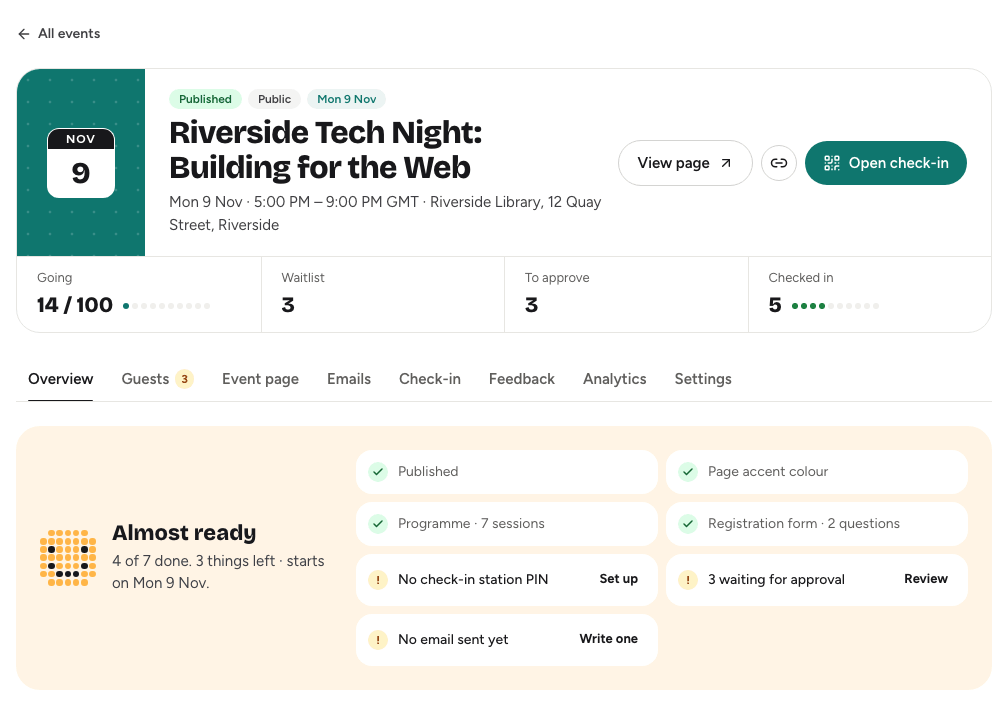
The top of the dashboard shows the event's date, title, time and place, and three labels:
- Status: Draft, Published (live), Hidden (offline) or Cancelled.
- Audience: Public, Hidden link, Approval required or Invite only.
- When: how soon the event is, such as Tomorrow.
Beside them are the main actions:
- View page opens the public event page. Owners, admins and some co-organisers can preview it while it's still a draft.
- The link button copies the event's link, once the event is live.
- Open check-in opens the check-in desk, for people with check-in access.
- Download PDF report appears for owners and admins once the event has ended. See The post-event report.
Owners, admins and co-organisers with Registrations also see live numbers under the title: Going, Waitlist, To approve and Checked in. On team events, Places taken counts teams and solo registrants.
The tabsLink to this section
| Tab | What you do there |
|---|---|
| Overview | See what's left to do, recent sign-ups, approvals waiting, sharing links and the event at a glance. |
| Guests | Work the guest list in People, manage Teams on team events, and send Invites. See The guest list. |
| Event page | Edit the Details (title, dates, location, cover and publishing), the Page & programme, and the Registration form. |
| Emails | Write to your guests and see what's been sent. See Emailing your guests. |
| Check-in | Set up the door: the door station, check-in lists, attendance and badges. See The check-in desk. |
| Judging | Only on hackathons with submissions turned on. See Running a hackathon. |
| Feedback | Build the feedback form, read responses and design certificates. See Feedback forms. |
| Analytics | Your registration funnel and turnout. See Analytics. |
| Settings | Co-organisers, the event address, cloning, embedding and deleting. |
A number on the Guests tab shows how many sign-ups are waiting for your approval.
The address bar remembers which tab is open, so you can bookmark a tab or send a teammate a link straight to it.
The Overview tabLink to this section
Readiness checklistLink to this section
Before the event, a checklist shows what's done and what's left, with a button beside each open item:
- Not published yet: Publish event makes it live in one click.
- No cover image: Add one opens the details form.
- No programme yet: Add sessions opens the programme.
- Registration form: shows how many questions you ask. Name and email are always collected.
- No check-in station PIN (in-person events): Set up opens the Check-in tab. See The door station.
- Waiting for approval: Review opens the guests who need a decision.
- No email sent yet: Write one opens Emails.
You only see the items you can act on. While the event is running, the heading changes to Happening now. Once it has ended, the checklist is replaced by This event has ended, with See how it went linking to Analytics.
The other cardsLink to this section
- Sign-ups: sign-ups per day over the last 14 days, and how this week compares with the week before.
- Waiting for you: people asking to join, when the event needs approval.
- Share: the event link, the short link and a shortcut to embedding. See Sharing your event.
- At a glance: when, where, who can join, capacity and status, with Edit details.
- Running this event: the admins and co-organisers, with Manage co-organisers.
The Settings tabLink to this section
- Co-organisers: invite people to help with this event. See Event co-organisers.
- Event address: change the end of the event's link. See Sharing your event.
- Run it again: clone the event. See Cloning, cancelling and deleting.
- Put it on your website: copy a register button or the embeddable event page. See Sharing your event.
- Delete event: remove the event permanently.
On events without judging, owners and admins can also turn on hackathon submissions here, which adds the Judging tab.