Organisation settings
Name, address, logo, public page, and deleting an organisation.
Organisation settings control how your organisation looks to guests: its name, description and logo, which show on your public page and at the top of every event page. Owners also manage API access and can delete the organisation from here.
Open Settings in the sidebar, or from the Settings button on your organisation's dashboard.
Edit your profileLink to this section
- Open Settings.
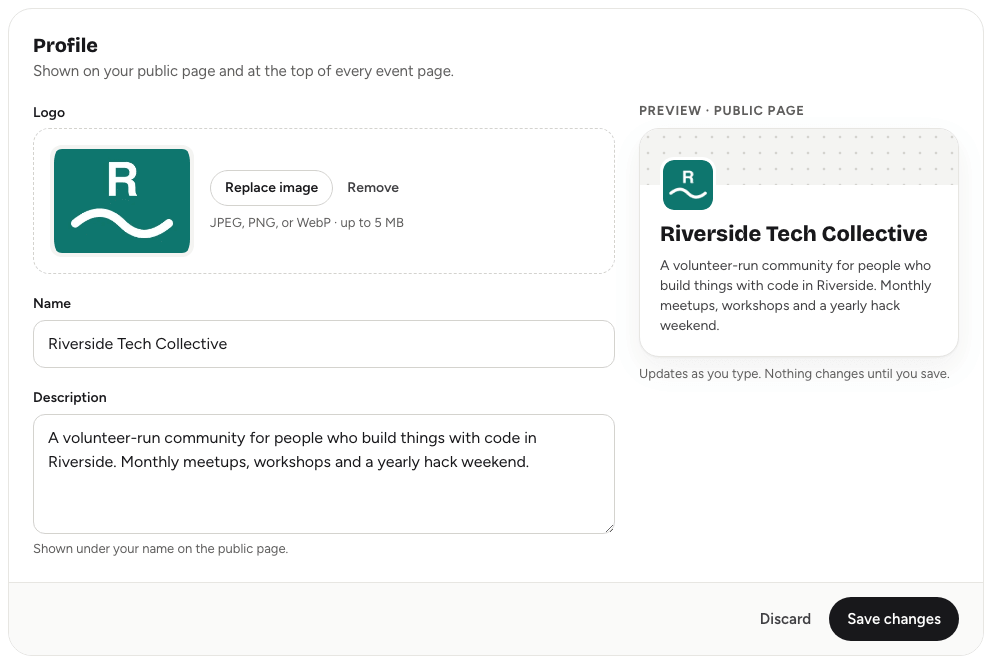
- In the Profile card, change the Logo, Name or Description.
- Check the Preview · public page beside the form. It updates as you type.
- Choose Save changes.
Nothing changes for guests until you save. Discard puts back what was saved. If you try to leave the page with unsaved changes, Yuyu asks you first.
- Logo: a JPEG, PNG or WebP image up to 5 MB.
- Name: up to 120 characters.
- Description: up to 2,000 characters, shown under your name on the public page.
Your public pageLink to this section
The Public page card shows your organisation's address, such as /riverside-coders. This one link always lists your upcoming events that are live and open to everyone.
- Copy link copies the full address so you can share it.
- Open takes you to the page.
The address is the web address you chose when you created the organisation. It can't be changed.
Connecting other toolsLink to this section
Two more cards connect Yuyu to your own systems:
- Webhooks (owners and admins) send registrations, check-ins and other activity to another tool as it happens. Choose Manage webhooks.
- API access (owner only) lets another system read your events with a key. Choose Manage API access.
Both are covered in the Connecting other tools section of this guide, which owners and admins can see in the sidebar.
Delete the organisationLink to this section
- Open Settings and scroll to Delete organisation.
- Choose Delete organisation….
- Type the organisation's exact name to unlock the button.
- Choose Delete.
For security, Yuyu only allows this within 10 minutes of signing in. If you see "For security, sign in again before deleting an organisation", sign out, sign back in and try again.
If you have upcoming events, email your guests first from each event's Emails tab. See Emailing your guests.
Good to knowLink to this section
- Members and co-organisers can't open organisation settings. If you can't see Settings in the sidebar, ask an owner or admin.
- Each event can also have its own logo and accent colour on its event page. See Event details.
- If you only want to step back yourself, you don't need to delete anything: leave from Account → Organisations. See Your data and memberships.