The certificate designer
Design certificates guests download after giving feedback.
You can thank people for coming with a certificate. When certificates are on, guests who fill in your feedback form can download a JPEG certificate with their name on it straight away. The certificate designer lets you use your own artwork and place the text and logos exactly where you want them.
Turning certificates onLink to this section
- Open the event and choose the Feedback tab.
- In the Certificate card, turn on the switch.
- Choose Design certificate to open the designer.
Turning certificates on changes the feedback form: respondents must enter the Email you registered with, and it has to match a confirmed registration for the event. Feedback is no longer anonymous. See Feedback forms.
If you don't design anything, guests get the standard Yuyu certificate.
Designing the certificateLink to this section
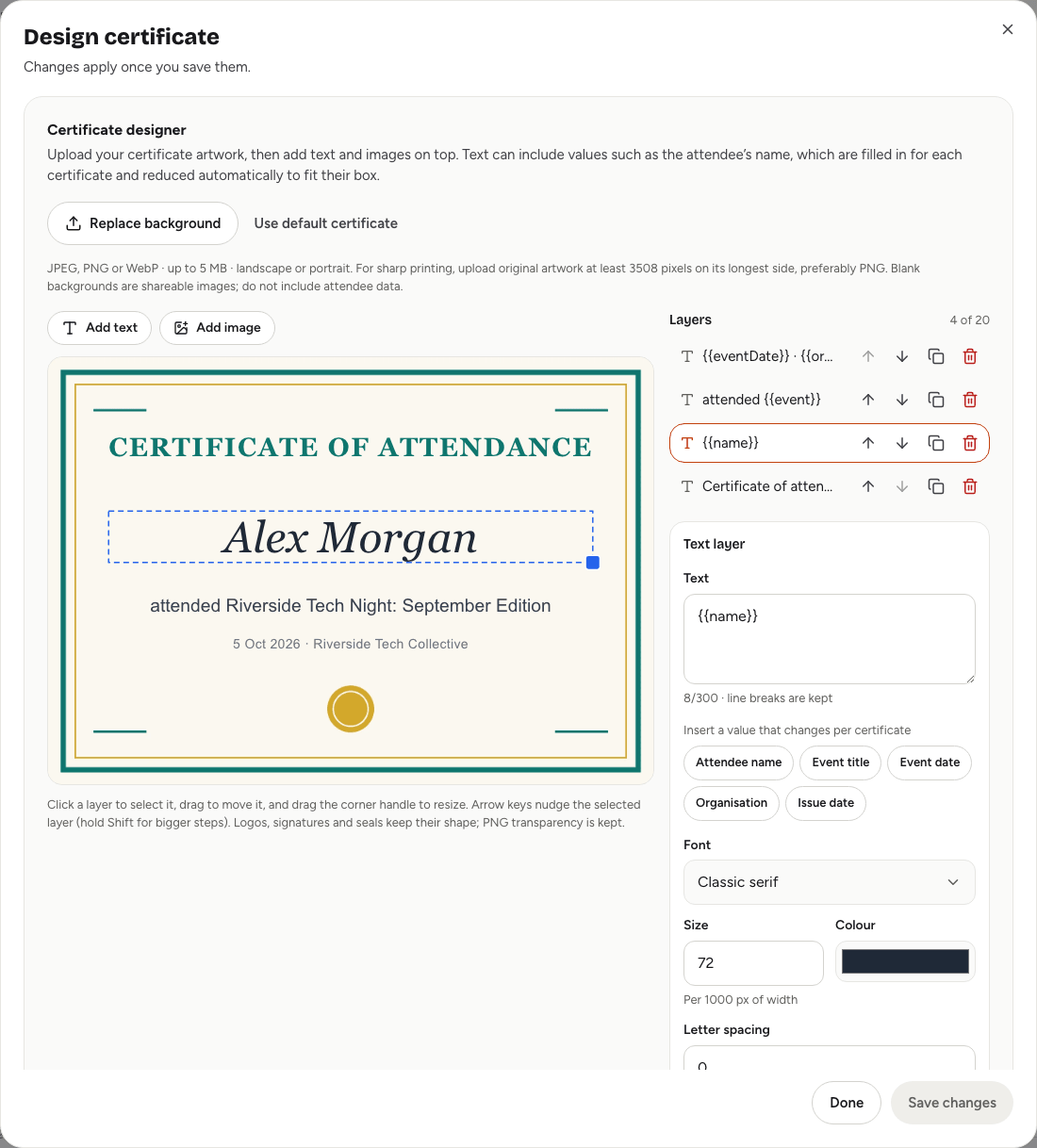
BackgroundLink to this section
Choose Upload background and pick a JPEG, PNG or WebP image up to 5 MB, in landscape or portrait. For sharp printing, upload the original artwork at least 3508 pixels on its longest side, preferably as a PNG. Choose Replace background to change it, or Use default certificate to go back to the standard one.
LayersLink to this section
Build the certificate from up to 20 layers on top of the background:
- Add text for words: a title, the attendee's name, the event, a date, a signature line.
- Add image for logos, signatures or seals: JPEG, PNG or WebP up to 5 MB. Transparent PNG backgrounds stay transparent, and images keep their shape inside their box.
Values that change per certificateLink to this section
In a text layer, use Insert a value that changes per certificate to add:
| Value | What it shows |
|---|---|
| Attendee name | The guest's registered name. |
| Event title | Your event's title. |
| Event date | The event's date. |
| Organisation | Your organisation's name. |
| Issue date | The date the certificate was issued. |
Dates use the event's time zone. You can mix values with your own words, such as "Awarded to" followed by the attendee's name. If no layer includes Attendee name, the designer warns you, because every certificate would look the same.
Styling textLink to this section
For each text layer, choose the Font (Classic serif, Clean sans or Monospace), Size, Colour, Letter spacing and alignment, and switch Bold, Italic or Uppercase on or off. Line breaks are kept. Long text, such as a long name, shrinks automatically to fit its box. Give a layer a Label to find it easily in the layer list.
Arranging layersLink to this section
- Click a layer to select it, drag it to move it (it snaps to the centre), and drag the corner handle to resize it.
- Nudge the selected layer with the arrow keys. Hold Shift for bigger steps.
- Use Centre horizontally and Centre vertically, or type exact positions and sizes as percentages.
- In Layers, bring a layer forward or send it backward, duplicate it, or delete it.
Previewing and savingLink to this section
The layout preview uses your browser's fonts, so it can differ slightly from the real thing. To check exactly what guests will get:
- Under Sample values, type a long name into Preview attendee name.
- Choose Generate exact preview. Yuyu draws the certificate exactly as it will be downloaded.
- If the name fits and everything lines up, choose Save changes.
The design isn't used until you save it.
What guests getLink to this section
After sending the feedback form, a guest chooses Download certificate (JPG). Guests with an account can also find their certificates later under Certificates on their account's registrations page. See Feedback and certificates.
Each response keeps the design that was active when it was sent. If you change the design later, only new certificates use it.
Good to knowLink to this section
- A certificate is only issued to someone whose email matches a confirmed registration. They don't need to have been checked in.
- Matching an email isn't proof that the person owns that inbox. For certificates with real-world value, such as course credits, check them against your own records.
- Turning certificates off makes new feedback anonymous again. Certificates already issued can still be downloaded, unless that guest's registration is later cancelled or declined.