Invite-only events
Send invitations and keep an event to the people you choose.
An invite-only event is open only to the people you choose. You add their email addresses to the event's invite list; Yuyu emails each of them, and only they can open the event page and sign up. Everyone else gets a "page not found".
Use it for private dinners, member-only sessions, or anything where you know exactly who should come.
Making an event invite-onlyLink to this section
- Open the event, choose the Event page tab, then Details.
- In the Publishing card, under Who can find it?, choose Invited people only.
- Choose Save changes in the bar at the bottom of the screen.
Invite-only events aren't listed on your organisation page, Discover or search. For the other options, see Publishing and visibility.
Inviting peopleLink to this section
- Open the Guests tab and choose Invites.
- Type an email address in the box, for example ada@example.org.
- Choose Add.
Each address you add gets an email titled "You're invited" with a link to the event page, asking them to register with that address. The person appears in the list with the date you invited them.
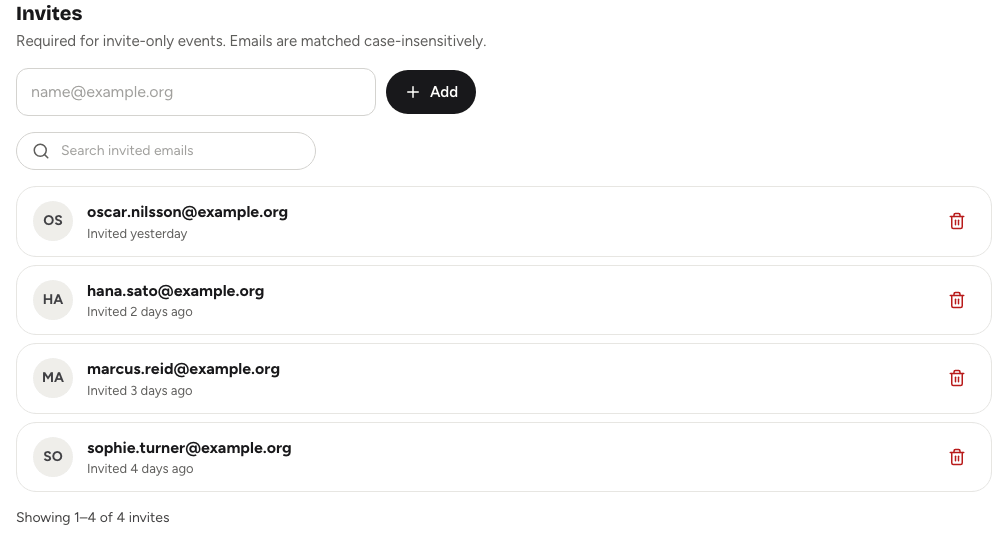
Addresses are matched without regard to capitals, so Ada@Example.org and ada@example.org are the same invite. Adding an address that's already on the list shows "That email is already invited."
How invited people sign upLink to this section
Because anyone could type someone else's email address into a form, invite-only events need an account:
- The invited person signs in to Yuyu, or creates an account, using the same email address you invited.
- They verify that address if they haven't already.
- They open the event page and register as usual.
Invited people get a place straight away; there's no approval step. If you've set a place limit and the event is full, they join the waitlist like anyone else. See Capacity, waitlists and approvals.
If someone says they can't see the page, check that they're signed in with the address on your list. A different address, or one that isn't verified yet, sees "page not found". For their side of things, see Registering for an event.
Removing an inviteLink to this section
Choose the bin icon next to the address, then Remove invite. That person can no longer open the event page or sign up.
Removing an invite doesn't cancel a registration they've already made. To take their place away too, remove them on the People sub-tab; see The guest list.
Finding someone in a long listLink to this section
Use Search invited emails to find an address. The list is split into numbered pages, and the line underneath shows how many invites match.
Good to knowLink to this section
- Once the event has ended, you can't add new invites.
- You can also add invites on an event that isn't invite-only. Those people get the same invitation email, which is a handy way to send the link to a few people, but anyone with the link can still sign up.
- Team registration on an invite-only event works through join links: each invited person signs in and joins their team with the link. Team leaders can't add members by name and email on these events. See Setting up team registration.
- Recurring series have their own invite list on the series page. See Recurring series.