Managing teams
Approve whole teams, move members and tidy up teams.
On an event with team registration, the Teams sub-tab of the Guests tab lists every team with its members. Places are given out team by team, so this is where you approve, decline and promote teams, and tidy up names and members.
The Teams sub-tab only appears when team registration is on. To set it up, see Setting up team registration.
Reading the Teams listLink to this section
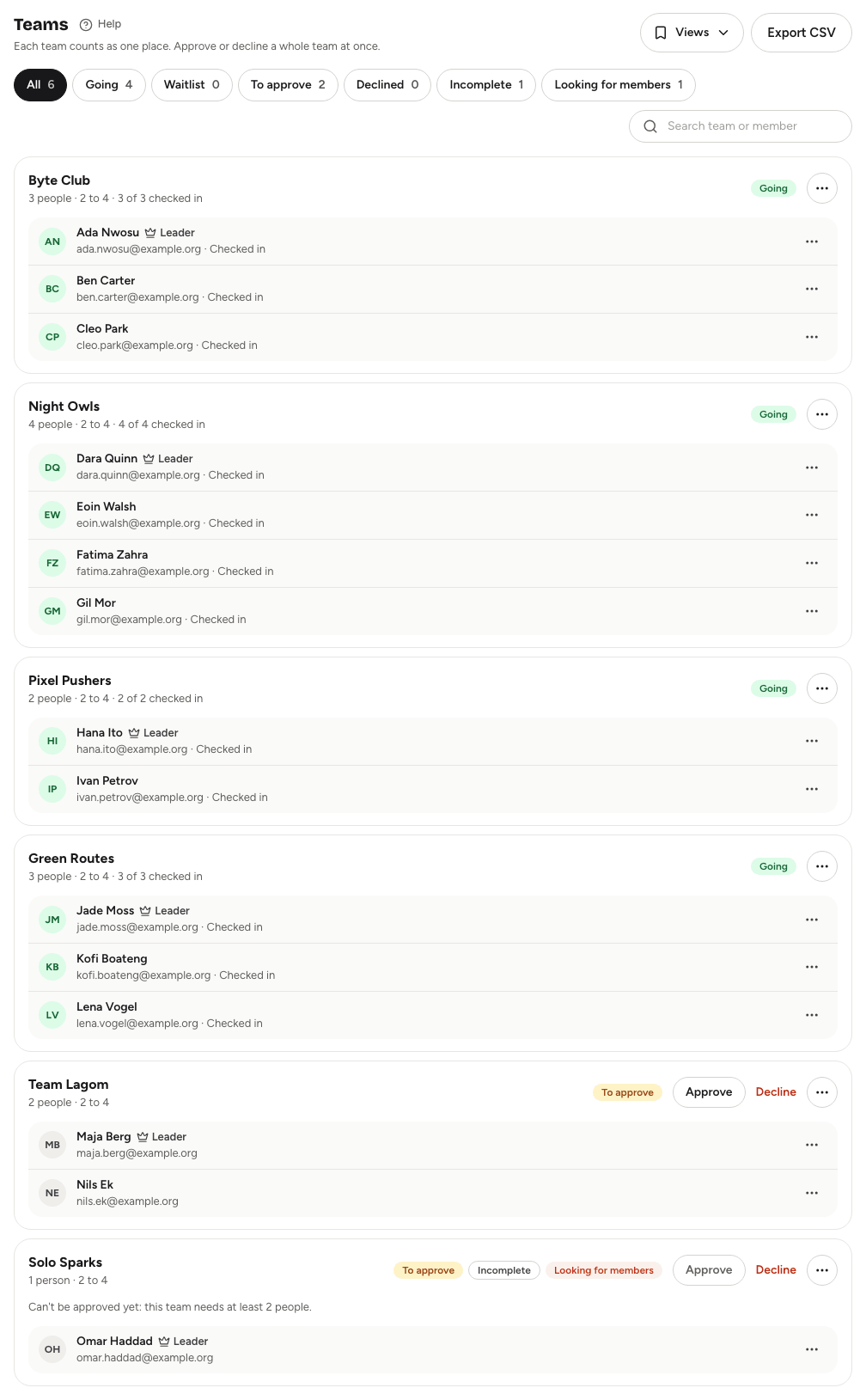
Each team shows its name, size (for example "4 people · up to 5"), how many members have checked in, and its status: Going, Waitlist, To approve or Declined. Two extra labels may appear:
- Incomplete: the team is smaller than your minimum team size.
- Looking for members: the leader has asked for more people to join.
Below each team you see its members, with a Leader label on the person who created or now runs it.
Use the filter chips (All, Going, Waitlist, To approve, Declined, Incomplete, Looking for members) and Search team or member to find a team. The list loads in batches; choose Load more teams for the next one.
Approving, declining and giving placesLink to this section
A team's members always share the team's status, so you act on the whole team at once:
- To approve: choose Approve to give every member a place, or Decline to turn the team down.
- Waitlist: choose Give a place to admit the team when there's a free place, or Decline team from the team's menu.
Every member is emailed when their team gets a place or is declined. Declining asks you to confirm, because everyone in the team will be told they don't have a place.
On the People sub-tab, a team member's row shows Manage in Teams instead of approve or decline buttons, because individual team members can't be approved or declined on their own.
Renaming a teamLink to this section
Open the team's menu, choose Rename team, enter the new Team name and choose Save. Team names must be unique within the event.
Moving someone to another teamLink to this section
- Open the menu next to the member and choose Move to another team.
- Search for and pick the team they should join. Only teams with room are listed.
- Choose Move.
The person takes the new team's status. For example, moving someone into a team that's going gives them a place and emails their ticket. A person who has already checked in can only move to a team that's going, and you can't move anyone into a declined team.
You can do the same from the People sub-tab: open a guest's menu and choose Move to another team, or Add to a team for someone registered on their own.
If moving someone leaves their old team empty, that team is removed.
Removing a memberLink to this section
Open the menu next to the member, choose Remove from event and confirm. Their registration is cancelled. If they were the leader, leadership passes to the longest-standing member; if they were the only member, the team is removed too.
Deleting a teamLink to this section
Open the team's menu, choose Delete team and confirm. The team and all its members' registrations are removed.
Both removing a member and deleting a team show an Undo button for about ten seconds, which restores everything as it was.
Good to knowLink to this section
- On team events, a place limit counts teams and solo registrants, not people. See Capacity, waitlists and approvals.
- Export CSV on the Teams sub-tab downloads every team matching your filter and search. See Exporting guest data.
- The Views menu has presets for Incomplete, Pending approval and Looking for members teams. See Filters and saved views.
- Leaders manage their own team from their team page. For what they can do, see Registering as a team.