The guest list
Statuses, approving and declining, adding guests by hand, and undo.
The guest list shows everyone who has registered for your event, what state their registration is in, and whether they've checked in. It's where you approve requests, give waitlisted guests a place, add people yourself and fix mistakes.
Opening the guest listLink to this section
Open the event and choose the Guests tab, then People. Each row shows the guest's name and email, when they registered, their status and their check-in time ("Not yet" for guests going who haven't arrived).
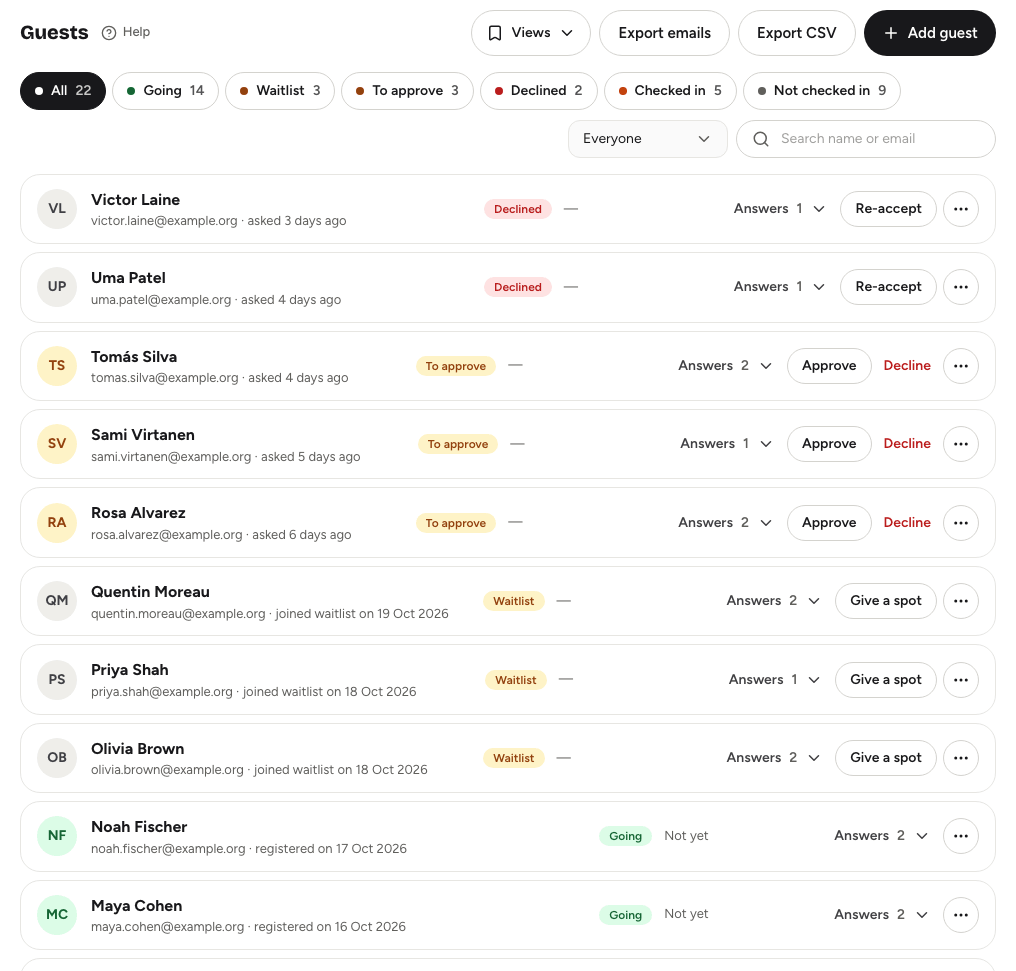
The list loads 50 guests at a time; choose Load more guests at the bottom for the next batch. The counts on the filter chips always cover the whole event, even while you search or use the dropdowns.
Guest statusesLink to this section
| Status | Meaning |
|---|---|
| Going | Has a place and a ticket. |
| Waitlist | Signed up when the event was full and is waiting for a place. |
| To approve | Asked to join an event where you approve each sign-up. |
| Declined | You turned down their request or removed them from the waitlist. |
Use the filter chips across the top (All, Going, Waitlist, To approve, Declined, Checked in, Not checked in) to narrow the list. Next to them you can show Everyone, Guests only (people who registered without an account) or Signed-in users, and search by name or email. On team events you can also filter by In a team or Solo, and search by team name.
Once you've asked guests whether they're still coming, an extra dropdown filters by their answer: Coming, Not coming, No reply or Not asked, each with a count. See Attendance confirmation.
To keep a filter you use often, save it as a view. See Filters and saved views.
Approving, declining and giving placesLink to this section
The buttons on each row change with the guest's status:
- To approve: Approve gives them a place; Decline turns them down.
- Waitlist: Give a spot gives them a place if one is free. To turn them down, open the row's menu and choose Decline.
- Declined: Re-accept gives them a place if there's room, or puts them on the waitlist if the event is full.
Each change emails the guest: a ticket when they get a place, or a note when they're declined. See Automatic emails.
If Approve or Give a spot says the event is at capacity, raise the place limit or free a place first. See Capacity, waitlists and approvals.
On team events, people in a team get a place or are declined with their whole team. Their row shows Manage in Teams instead; see Managing teams.
Reading answersLink to this section
If your registration form has questions, choose Answers on a row to show what that guest wrote. The number next to it is how many questions they answered.
Adding a guest yourselfLink to this section
Add someone who registered by phone, a speaker, or a volunteer.
- On the People sub-tab, choose Add guest.
- Enter their Name and Email, and answer any registration questions.
- Choose Add attendee.
They're emailed their ticket straight away. The usual rules still apply: they join the waitlist if the event is full, or wait under To approve if you approve each sign-up. You can add guests even after sign-ups have closed. An email address can only be registered once per event.
Editing a registration or transferring a ticketLink to this section
Open the row's menu and choose Edit registration or transfer ticket. You can correct answers, or change the name and email to hand the ticket to someone else, then choose Save transfer. The ticket link, status and check-in stay the same, and no email is sent, so use Copy ticket link from the menu to send the new person their ticket.
For people who registered with a Yuyu account, the menu says View registration instead. You can update their answers but not move their ticket to someone else.
Removing a guestLink to this section
Open the row's menu, choose Remove RSVP and confirm. A message appears with Undo for about ten seconds; choose it to bring the registration back exactly as it was.
Crew on the guest listLink to this section
Crew members appear in People as Going, with a Crew chip. Their menu only offers Copy ticket link and Undo check-in: you edit and remove crew in Guests → Crew instead. See Event crew.
Other actionsLink to this section
- Copy ticket link copies the guest's private ticket link. Treat it like a ticket: anyone with the link can use it.
- Share attendance link (owners and admins, for guests who are Going, before the event starts) gives you the guest's "Are you still coming?" link to send yourself. See Attendance confirmation.
- Undo check-in marks a checked-in guest as not checked in, after you confirm.
- On team events, Add to a team or Move to another team puts a guest into a team with room.
Good to knowLink to this section
- Guests who cancel their own registration disappear from the list. If they had a place, the person who has waited longest on the waitlist gets it automatically, unless you approve each sign-up.
- After you send an attendance confirmation, each guest shows a chip with their answer (Coming, Not coming, No reply or Not asked), and any note they left appears under their row.
- Chips under a guest show the custom check-in lists they've been checked into, such as meals or swag. See Custom check-in lists.
- To download the list, see Exporting guest data.