The registration form
Question types, settings, and questions that only show when needed.
The registration form is what people fill in when they sign up. Every guest gives their name and email; you can add your own questions on top, such as dietary needs, T-shirt sizes or a code of conduct to accept.
Opening the form builderLink to this section
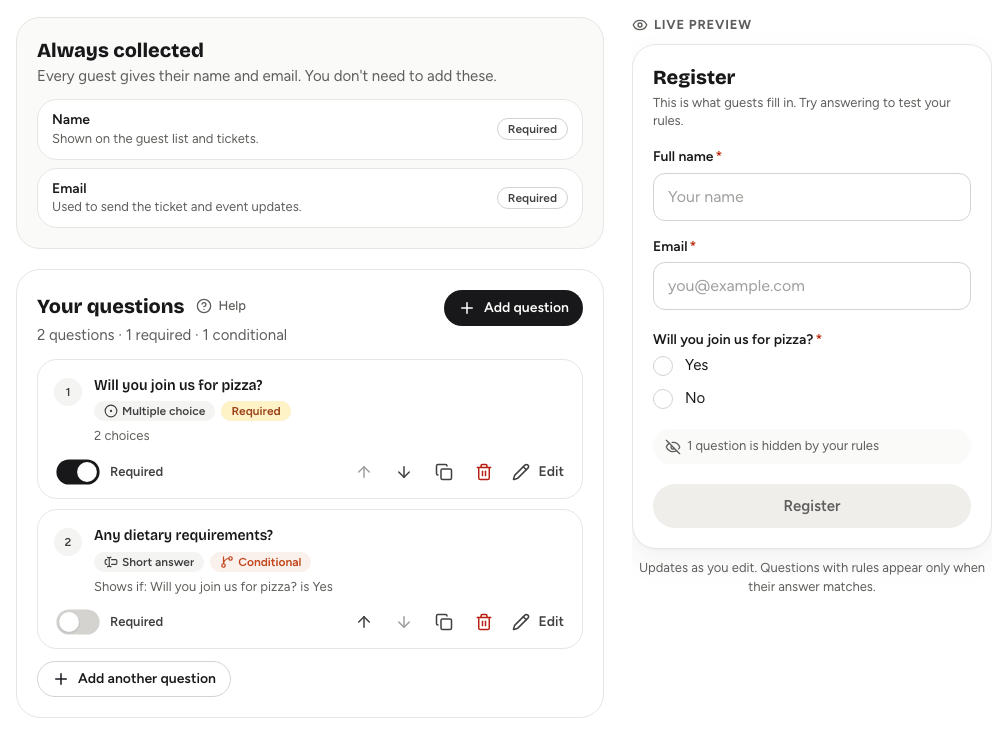
Open the event, choose the Event page tab, then Registration form. On a wide screen the Live preview sits beside the builder and updates as you type, so you can try the form exactly as guests will see it. On a phone, choose Show preview.
The Always collected card shows the two questions every guest answers: Name and Email. You don't need to add them.
Adding a questionLink to this section
- Under Your questions, choose Add question.
- Pick how to start:
- Answer types: choose the kind of answer you need and write the question yourself.
- Ready-made: choose a common question. It's added straight to the form and you can edit it afterwards.
- Write the Question and fill in any settings you need (see below).
- Choose Add question. You can also press Ctrl + Enter.
Each question is saved on its own as soon as you add it.
Answer typesLink to this section
| Answer type | Use it for |
|---|---|
| Short answer | A name, a company, one line of text. |
| Paragraph | Longer answers like questions or notes. |
| Multiple choice | Picking one from a short list. |
| Dropdown | Picking one from a longer list. |
| Checkboxes | Picking as many as apply. |
| Yes / no | A single tick, such as consent. |
| An email address, checked to look like one. | |
| Phone | An international phone number. |
| Number | A whole or decimal number. |
| Date | A calendar date. |
The Ready-made tab includes Organisation or company, Job title or role, Phone number, Dietary needs, Accessibility needs, T-shirt size, How did you hear about this event?, Experience level, a photo consent and a code of conduct agreement. A ready-made question that's already on your form is greyed out.
Question settingsLink to this section
- Help text is shown under the question (up to 300 characters).
- Example answer is shown faintly inside the empty box (up to 120 characters).
- Required means guests must answer before they can register. For a Yes / no question, it means the box must be ticked.
- Choices for Multiple choice, Dropdown and Checkboxes. Use Add choice, or Paste a list with one choice per line. Duplicate choices are merged when you save.
- Allow an "Other" answer adds an "Other" choice with a short text box.
- Limits, all optional: Fewest characters and Most characters for text, Lowest number and Highest number for numbers, Earliest date and Latest date for dates, and Up to how many choices? for Checkboxes.
Yuyu checks every setting again when someone registers, so a guest can't get around a limit.
Questions that only show when neededLink to this section
A question can appear only when an earlier answer makes it relevant. For example, ask "Which workshop?" only to people who ticked "I'm coming to the workshops".
- Make sure the question you depend on is a Multiple choice, Dropdown, Checkboxes or Yes / no question, and that it sits above this one.
- Edit the question that should appear conditionally.
- Turn on Show this question only if….
- Pick the Earlier question, then under Show when the answer is, choose one or more answers. The question shows if the answer is any of these.
- Choose Save question.
Answers to a question that ends up hidden are thrown away when the guest registers, so you never collect answers to questions they didn't see.
Changing and reordering questionsLink to this section
Each question's card has a Required switch, arrows to move it up or down, a button to duplicate it, and a button to delete it. Choose Edit to open its settings. Changing a question's answer type can remove settings that don't apply to the new type; the editor tells you which before you save.
Where answers goLink to this section
- On the Guests tab, choose Answers on a guest's row to read what they wrote. See The guest list.
- Export CSV gives one column per question. See Exporting guest data.
- When you add a guest yourself, or edit a guest's registration, you answer the same questions.
Good to knowLink to this section
- You can change the form at any time, even after people have registered. People who already registered aren't asked the new questions, so their answers to them stay blank.
- Name and email are always required and always come first.