Publishing and visibility
Draft, Live and Offline; who can find the event; and sign-up rules.
Publishing decides three things: whether your event is visible at all, who can find it and sign up, and how many places there are and for how long. You set all three in one place, the Publishing card at the bottom of Event page → Details.
Publish your eventLink to this section
- Open the event and choose Event page → Details.
- Scroll to Publishing.
- Under Who can see this event?, choose Live.
- Check Who can find it? and Sign-ups (see below).
- Choose Save changes in the bar at the bottom.
The line at the top of the card sums up what guests experience, for example: Live. Listed publicly, anyone can sign up · 120 spots · closes 2 hours before.
If you're happy with the settings already, the quickest way is Publish event in the Overview tab's checklist. It makes the event live without changing who can find it or the sign-up rules.
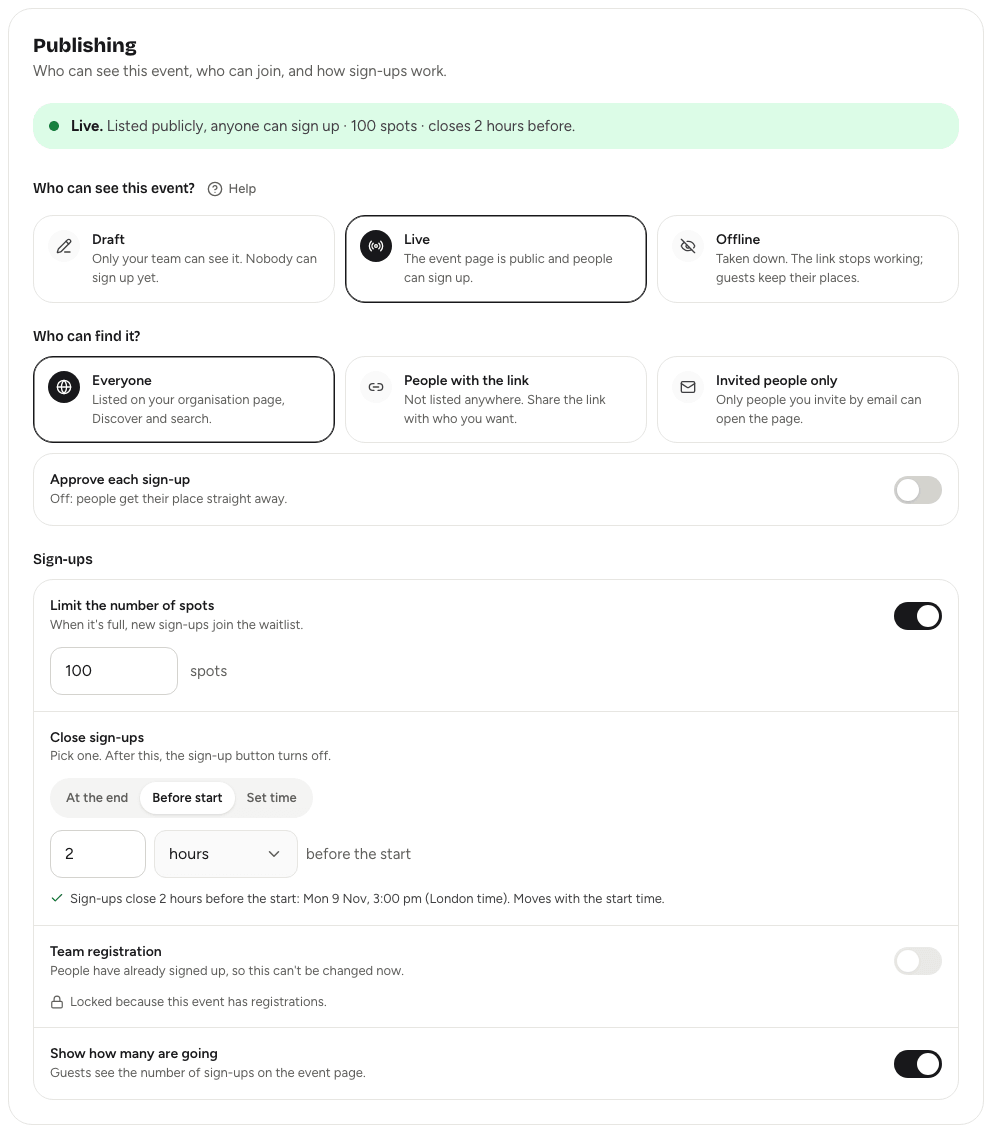
Who can see itLink to this section
| Choice | What it means |
|---|---|
| Draft | Only your team can see it. Nobody can sign up yet. Every new event starts here. |
| Live | The event page is public and people can sign up. |
| Offline | Taken down. The link stops working and sign-ups close, but guests keep their places. |
While an event is a draft or offline, owners, admins and co-organisers with Edit details or Publish and schedule can still open the page to preview it. They see a Preview mode note at the top.
In the dashboard header and the At a glance card, a live event shows as Published and an offline one as Hidden.
Who can find itLink to this section
These choices take effect once the event is live.
- Everyone: listed on your organisation's public page, on Discover and in search. Search engines can find it too.
- People with the link: not listed anywhere. Anyone you share the link with can open it and sign up.
- Invited people only: only people you invite by email can open the page. They need to sign in with the invited address. See Invite-only events.
Approve each sign-upLink to this section
Turn on Approve each sign-up if you want to choose who gets a place. People ask to join and wait until you accept them in Guests. With it off, people get their place straight away.
You can combine it with Everyone (people find the event publicly, then ask to join) or People with the link. It isn't needed for invite-only events: invited people are confirmed when they sign up. See Capacity, waitlists and approvals.
Sign-upsLink to this section
Limit the number of spotsLink to this section
Turn on Limit the number of spots and enter a number. When it's full, new sign-ups join the waitlist. With it off, everyone who signs up gets a place.
You can't set a limit lower than the number of people who already have a place. On team events, each team counts as one place, and so does each person signing up on their own.
Close sign-upsLink to this section
Pick one rule. After it, the sign-up button turns off.
- At the end: sign-ups stay open until the event ends.
- Before start: close a set number of minutes, hours or days before the start. This moves with the start time if you change it.
- Set time: close at a date and time you choose, on or before the start, in the event's time zone.
A line underneath explains exactly when sign-ups close.
Team registrationLink to this section
Turn this on for hackathons and competitions where people sign up in teams. It can't be switched on or off once anyone has registered. See Setting up team registration.
Show how many are goingLink to this section
With Show how many are going on, guests see the number of sign-ups on the event page.
Good to knowLink to this section
- The Details form can only be saved while the event's start time is in the future, so make publishing changes before the event starts.
- A short link only works while the event is live. See Sharing your event.
- Changing who can find the event doesn't remove anyone who already signed up.