Capacity, waitlists and approvals
Limit places, run a waitlist, approve each sign-up, and close registration.
Use these settings to control how places are given out: cap the number of places, let a waitlist form when you're full, approve each person yourself, and choose when sign-ups close.
Where these settings liveLink to this section
They're all in the Publishing card on the Event page tab, under Details. Change what you need, then choose Save changes in the bar that appears at the bottom of the screen.
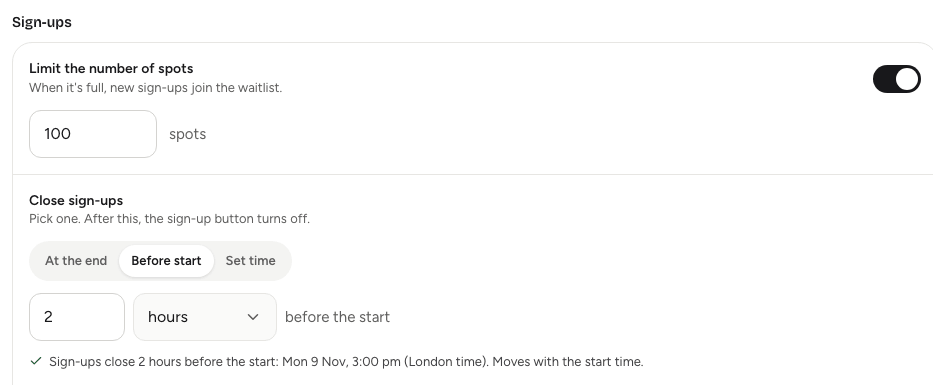
Limiting placesLink to this section
- In Publishing, under Sign-ups, turn on Limit the number of spots.
- Enter the number of places.
- Choose Save changes.
With the switch off, places are unlimited and everyone who signs up gets one. On a team event, each team counts as one place, and so does each person signing up on their own; see Setting up team registration.
You can raise the limit at any time. You can't lower it below the number of people who already have a place.
The waitlistLink to this section
When every place is taken, the register button on the event page changes to Join the waitlist. People who sign up then are put on the waitlist and get an email saying so. They appear under Waitlist on the Guests tab.
People leave the waitlist in three ways:
- Automatically. When someone with a place cancels their own registration, the person who has waited longest gets the place and is emailed their ticket.
- When you give them a place. Choose Give a spot on their row in the Guests tab. This only works while there's a free place, so raise the limit first if the event is full.
- When you decline them. Choose Decline from the row's menu.
Approving each sign-upLink to this section
Turn on Approve each sign-up (under Who can find it?) when you want to choose who comes. Everyone who signs up then asks to join and waits under To approve on the Guests tab, even when there are places left. They get an email saying their request is pending.
- Open the Guests tab and choose the To approve filter.
- Choose Answers on a row to read what they told you.
- Choose Approve to give them a place, or Decline to turn them down.
Approved guests get their ticket by email; declined guests get an email saying so. If you change your mind, Re-accept on a declined guest gives them a place if there's room, or puts them on the waitlist if not.
With approval turned on and a place limit set, you can only approve while places are free. Nobody is promoted from the waitlist automatically on these events; you decide every place.
Approval doesn't apply to invite-only events: invited people get a place when they sign up. See Invite-only events.
Closing registrationLink to this section
Under Close sign-ups, pick one rule:
| Option | Sign-ups close |
|---|---|
| At the end | When the event ends. |
| Before start | A set number of minutes, hours or days before the start. This moves with the start time if you change it. |
| Set time | At a date and time you choose, in the event's time zone. It must be on or before the start. |
The line under the options tells you exactly when sign-ups will close. After that, the event page shows Registration closed and nobody can sign up. Whatever you choose, sign-ups always close when the event ends.
You can still add guests by hand from the Guests tab after sign-ups close. See The guest list.
Showing how many are goingLink to this section
Show how many are going shows the number of sign-ups on the event page. It's on for new events; turn it off if a low number early on might put people off.
Good to knowLink to this section
- Taking an event Offline or back to Draft stops new sign-ups straight away, but guests keep their places. See Publishing and visibility.
- Approvals and Give a spot only work while the event is live and hasn't ended.
- A guest added by hand follows the same rules: they go to the waitlist if the event is full, or to To approve if you approve each sign-up.
- Recurring series set their limit and approval rules on the series, and each date has its own places. See Recurring series.