Registering for an event
Sign up as a guest or with an account, and what happens with approvals and waitlists.
Registering takes a minute and is always free. You can register as a guest with just your name and email, or while signed in to a Yuyu account so the event is saved under Account settings → Registrations.
Register for an eventLink to this section
- Open the event page. The Join this event card shows how many people are going and, if places are limited, how many are left.
- Choose the register button. Its wording tells you what will happen (see below).
- In the Register for … dialog, fill in your Name and Email, or just your name if you're signed in.
- Answer any questions the organisers added. Required questions must be answered; optional ones are marked Optional.
- Choose Register.
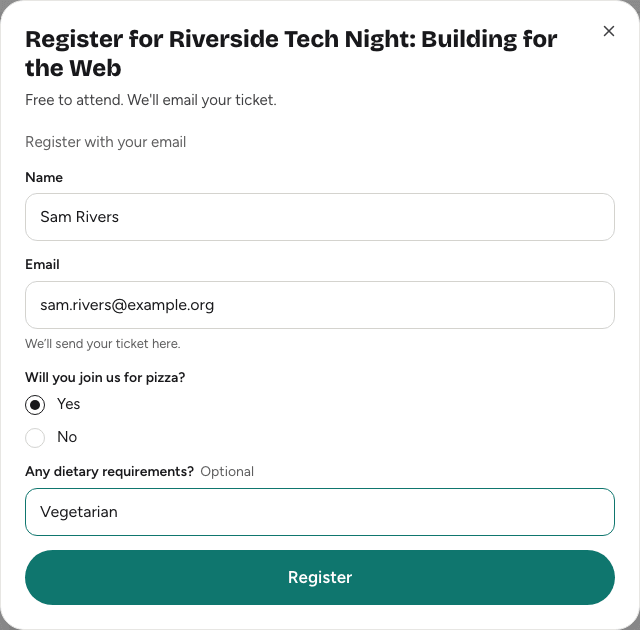
If something needs fixing, Yuyu says so ("One answer needs a quick fix before you can register.") and highlights the question.
When you're signed in, the name field is optional: leave it blank to use your account name.
What the button meansLink to this section
| Button | What happens when you register |
|---|---|
| Register — it's free | You get a place straight away. |
| Request to join | The organisers review each sign-up. You wait for their approval. |
| Join the waitlist | The event is full. You join the waitlist and may get a place later. |
| Registration closed | Sign-ups have closed, so you can't register any more. |
Team events use different wording, such as Register your team. See Registering as a team.
After you registerLink to this section
- Place confirmed: you see "Registration confirmed." with Download and save ticket and View ticket. We email you a link to your ticket with its QR code, the event details and a calendar invitation. Save the ticket: you'll show its QR code at the door.
- Waitlisted or waiting for approval: you see "Registration received. We'll let you know when its status changes." We email you to confirm what happened, and again when your status changes.
The event page remembers your registration in this browser: the card shows You're in, On the waitlist or Waiting for approval, and its button opens your ticket.
See Your ticket for everything you can do from the ticket page.
Waitlists and approvalsLink to this section
- Waitlist: if someone with a place cancels, the earliest person on the waitlist usually moves up automatically and gets an email with their ticket. Organisers can also give waitlisted people a place by hand. On events that need approval, nobody moves up automatically.
- Approval: the organisers accept or decline each request, and you get an email either way. If the event is full, they can only accept you once a place frees up.
There's nothing you need to do while you wait. Your ticket page shows your current status.
Invite-only eventsLink to this section
Invite-only events can only be opened by people on the organisers' invite list. To register:
- Sign in with the email address your invitation was sent to. That address must be verified.
- Open the event link and register as usual.
You can't register for an invite-only event as a signed-out guest.
Recurring eventsLink to this section
For a recurring series, such as a weekly meetup, each date has its own page and its own guest list. Register for each date you want to attend.
Common messagesLink to this section
| Message | What it means |
|---|---|
| "This email is already registered for this event." | Someone already registered with that email. Check your inbox for the earlier confirmation. |
| "You have already RSVP'd for this event." | Your account is already registered. Find it in Account settings → Registrations. |
| "This event is not open for RSVP." | The event has ended, sign-ups have closed, or the organisers took it offline. |
| "This event is invite-only. Sign in with the invited account to register." | Sign in with the email address that was invited. |
Good to knowLink to this section
- You can register once per event or date.
- Your answers go to the organisers of this event only.
- Changed your mind? You can cancel from your ticket. See Your ticket.