Printing badges
Design name badges and print one after each check-in.
Yuyu can print a name badge for each guest the moment they're checked in. You design the badge once, connect a printer to the check-in device, and every check-in brings up that guest's badge ready to print. Badges print in black and white, so they work on ordinary laser printers and thermal label printers alike.
Turning on badge printingLink to this section
- Open the check-in desk on the device connected to your printer.
- Turn on ID card printing, next to Override waitlist.
- Choose Set up cards to open the badge designer and get the design right (see below).
- Check someone in. A sheet opens with their badge.
- Choose Print badge or press Enter. Choose Skip if they don't need one.
ID card printing is off by default and only applies to the desk you're on, so turn it on at each desk that has a printer. It switches off again if you reload the page.
After printing, the sheet offers Print again in case the badge didn't come out, and Done. To reprint later, choose Print ID card on the guest's check-in result.
Designing the badgeLink to this section
Choose Set up cards on the desk, or Edit design on a print sheet, to open the Badge designer. It has three parts: settings on the left, a live preview in the middle, and the selected item's properties on the right.
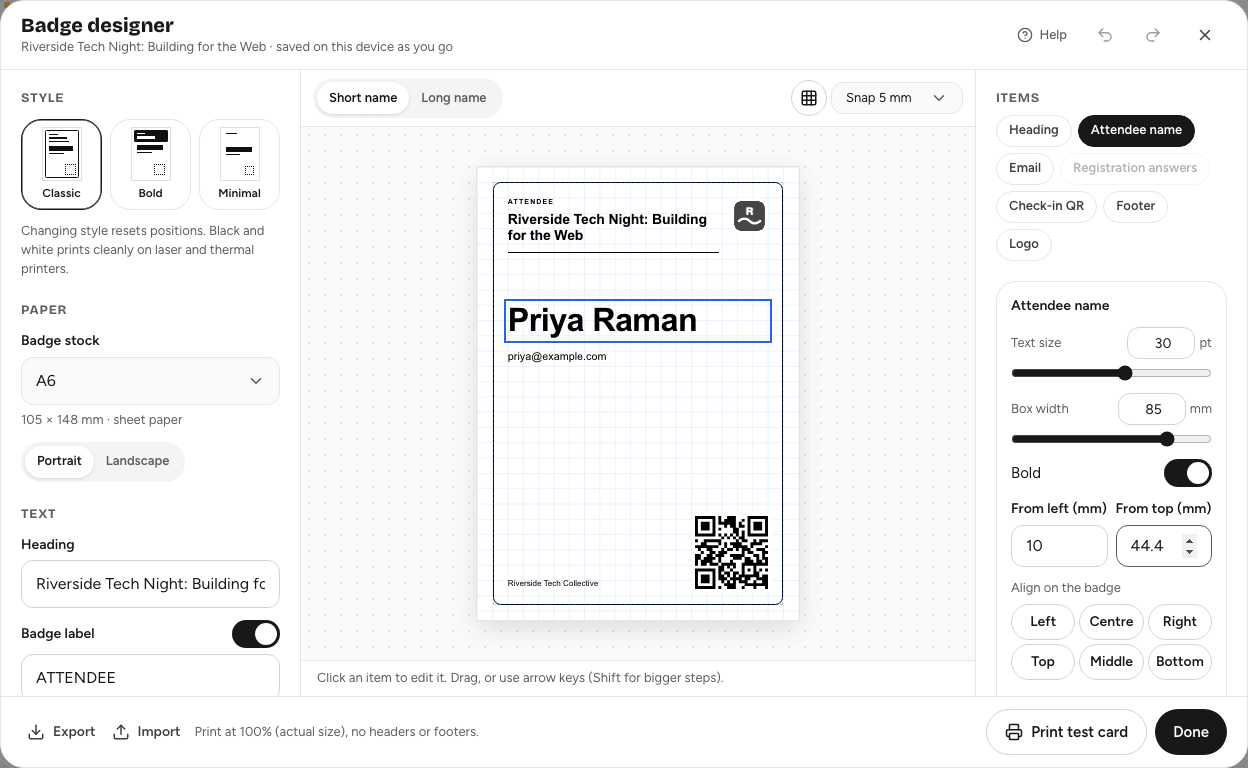
Style. Pick Classic (a thin frame, with a hairline under the heading), Bold (the heading on a black band, the name in capitals) or Minimal (no lines, just the name). The guest's name is always the largest text. Changing style resets item positions.
Paper. Choose your Badge stock: A6, 4 × 6 in, 3 × 4 in, 4 × 3 in, ID card (CR80), or Custom size with a width and height between 40 and 300 mm. Pick Portrait or Landscape. Text and spacing scale to fit the stock.
Text. The Heading starts as the event title. The Badge label (such as "ATTENDEE" or "SPEAKER") and the Footer (your organisation's name to begin with) each have a switch to hide them.
Show on the badge. Switch Attendee email and Organisation logo on or off. The logo comes from your organisation settings. Shrink long names to fit keeps long names on one line, down to 60% of the normal size.
Registration answers. Print answers from your sign-up form, such as company or role, under the name. Add them from Add an answer, put them in order, and give each a shorter printed label if you like. On team events you can also add the guest's Team.
Arranging itemsLink to this section
Click an item on the preview to select it, then drag it, or nudge it with the arrow keys (hold Shift for bigger steps). In the right-hand panel you can set the text size, box width and exact position in millimetres, align it on the badge, or choose Reset this item. Use the Snap control (for example Snap 5 mm) to pick the grid size, and the guides button to show or hide the grid. Undo and redo are in the top corner.
Switch the preview between Short name and Long name, so you know the longest names in your guest list will fit.
Every badge carries the guest's own check-in QR code, made on the device, so the badge can be scanned later. Keep the QR code at least 20 mm across so it scans reliably once printed.
Testing and sharing the designLink to this section
- Print test card prints a badge with sample details. Do this before the doors open.
- The design is saved on this device, for this event, as you go. Another device starts with the default design.
- To set up a second desk the same way, choose Export to save the design as a file, then Import it on the other device.
Good to knowLink to this section
- Badges also print when you're checking in offline. See Checking in offline.
- Guests' answers only print if you choose them under Registration answers. Nothing else from the sign-up form appears on the badge.