Submissions and the gallery
The submission window, reviewing projects, and the public gallery.
Once submissions are on, entrants send in their projects during the window you set. The Submissions section of the Judging tab is where you watch them arrive, check who hasn't submitted yet, and deal with any that break the rules. After the window closes, you can also show every project in a public gallery.
The submission windowLink to this section
Set the window in Judging → Setup, in the Project submissions card:
- Opens and Closes are in the event's time zone. Yuyu checks the time every time an entrant saves, so nobody can sneak a change in after the deadline.
- Choose Save settings after changing them.
Only confirmed entrants can submit. On a team event, that's a confirmed team. On an individual event, or for a solo registrant at a team event, it's a confirmed registration. Entrants reach the form from their ticket or team page while the event is live.
A project has a title (up to 120 characters), a plain-text summary (up to 4,000 characters), and optional links to the code, a demo and a video. Entrants can save a draft, submit, edit while the window is open, and withdraw. The entrants' side is covered in Submitting a hackathon project.
Submission receiptsLink to this section
By default, nobody is emailed when a project is submitted: entrants see "Project submitted" on screen. To send a receipt, turn on Email a receipt when a project is submitted under Hackathon emails in Judging → Setup and choose Save settings. Whoever submits then gets an email confirming the project was received.
The email with a solo entrant's private submission link isn't affected by this switch. It always goes out, because it's their only way into the form.
Reviewing submissionsLink to this section
Open Judging → Submissions to see every project, oldest first.
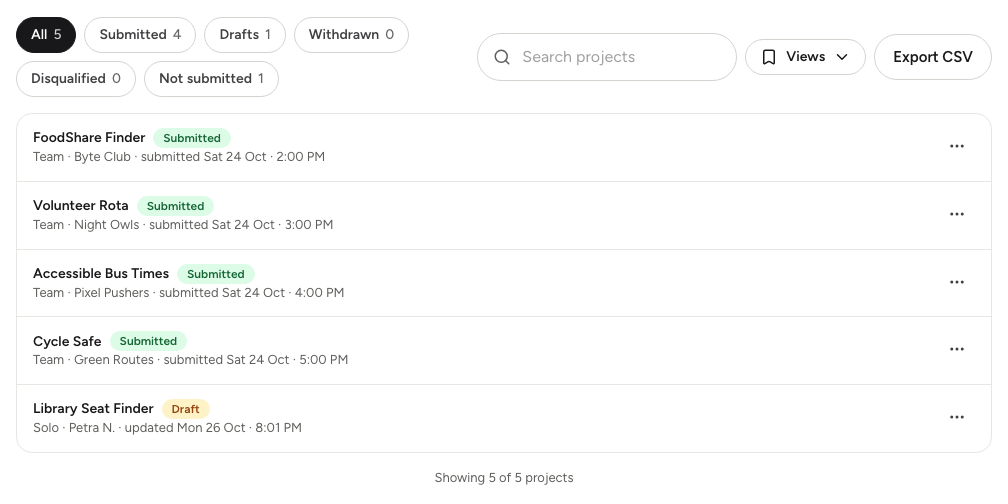
- Filter by status with All, Submitted, Drafts, Withdrawn, Disqualified and Not submitted. Each shows a count.
- Type in Search projects to find a project by title, team name or registrant name.
- Choose Load more to see more projects.
- Use the Views menu to save filters you use often. See Filters and saved views.
Only Submitted projects are judged. Drafts and withdrawn projects stay visible here but never reach the judges.
Not submitted lists the confirmed teams and solo entrants who don't have a submitted project yet, whether they have nothing, a draft, or a withdrawn or disqualified project. Use it to send a reminder before the deadline. See Emailing your guests.
Choose the ⋯ button on a project for its actions:
- View project shows the title, summary and links.
- Judges' reviews shows each judge's scores and their private comment.
- Assign judges picks who reviews it, when judges only see assigned projects. See Assigning judges and tracking progress.
- Disqualify… and Reinstate… are described below.
Disqualifying a projectLink to this section
- Choose ⋯ on the project, then Disqualify….
- Enter a Reason. Only organisers see it; the entrant isn't told.
- Read the warning, then choose Disqualify.
A disqualified project stops being judged and drops out of the ranking. If it holds any awards, it loses them, and if results are already published the live results page changes straight away.
To undo this, choose Reinstate…. The project goes back into judging and the ranking, but it doesn't get its awards back. Assign them again on the Awards tab if it should still win.
Exporting submissionsLink to this section
Choose Export CSV to download exactly the projects matching your filter and search. The file includes each project's entrant, whether it's a team or solo entry, its status, submitted and updated times in the event's time zone, the summary, links, assigned judges and any disqualification reason. With Not submitted selected, it lists those entrants instead.
The public project galleryLink to this section
To show off everyone's work, turn on Public project gallery in Setup and choose Save settings. Once the submission window closes, the event's projects page lists every submitted project, 24 to a page.
- Visitors can search by project title or team name, and sort by Newest or A–Z.
- After you publish results, award winners get badges, and visitors can filter to Award winners or sort by Awards first. Winners are never revealed before that.
- The gallery follows the event page's visibility. If the event is private, invite-only or offline, so is the gallery.
Good to knowLink to this section
- Moving the closing time is how you stop new projects. You can't turn submissions off once judging has started.
- While submissions are on and the event is a draft, offline or cancelled, the Project submissions card warns that entrants can't submit.