Creating an event
The three-step Create event dialog and what to do next.
Every event starts in the Create event dialog: three short steps for the basics, the time and the place. Yuyu saves the event as a draft, so nobody can see it or sign up until you're ready to publish.
For a meetup that repeats on a schedule, create a recurring series instead.
Create an eventLink to this section
- Open your organisation's dashboard and choose New event. On a phone, tap the round + button at the bottom of the screen.
- Basics: enter a Title and write About the event. Add Tags if you like, then choose Next.
- Schedule: pick the Start and End, and the Timezone they're in. Choose Next.
- Location & sign-ups: enter the Location, or turn on Online event and paste the meeting link. Decide whether people register in teams.
- Choose Create.
Yuyu opens the new event's dashboard. You can go Back between steps without losing what you typed, but closing the dialog with Cancel discards it.
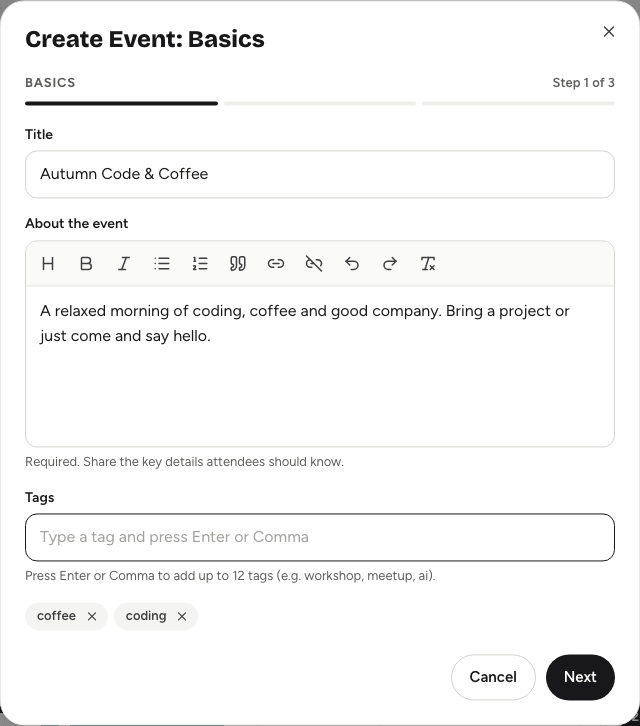
Step 1: BasicsLink to this section
- Title: up to 200 characters. Yuyu also turns it into the event's web address, which you can change later in Settings.
- About the event: required. Use the toolbar for headings, lists and links. This becomes the introduction on your event page.
- Tags: optional words that help people find the event in search, such as workshop or meetup. Press Enter or type a comma after each one. You can add up to 12.
Step 2: ScheduleLink to this section
The start is set to the next whole hour and the end to an hour later. When you change the start, the end moves to one hour after it, so set the start first.
- The start must be now or in the future, and the end must be after the start.
- Timezone is the clock your start and end times are on. Guests see times in the event's time zone. Choose the zone where the event happens, especially for in-person events.
Step 3: Location and sign-upsLink to this section
- Location: the venue or street address, at least 3 characters.
- Online event: turn it on for a virtual event. The field changes to Online meeting link, which must be a full web address starting with
https://orhttp://. The event page shows "Online event"; guests get the link on their ticket. - Map link: optional, for in-person events. Paste a Google Maps share link so guests can open directions.
- Team registration: turn it on for hackathons, game jams and competitions where people sign up in teams. Set the smallest and largest team size and whether people can sign up without a team. See Setting up team registration.
How a new event startsLink to this section
A new event is a Draft: only your team can see it and nobody can sign up. It starts with these settings, which you can change in Event page → Details before you publish:
- Who can find it: everyone (listed publicly once it's live).
- Spots: unlimited.
- Sign-ups: open until the event ends.
- Show how many are going: on.
What to do nextLink to this section
The event's Overview tab shows a checklist of what's left. Most organisers:
- Add a cover image and check the details. See Event details and The cover photo editor.
- Add questions to the registration form, if you need more than name and email. See The registration form.
- Decide who can find the event and how sign-ups work, then publish. See Publishing and visibility.
- Share the link. See Sharing your event.
Good to knowLink to this section
- If you see "Verify your email before creating events", verify your address first. See Creating an account and signing in.
- To run an event again, clone it instead of starting from scratch. See Cloning, cancelling and deleting.
- If a time is shown as not existing in your time zone, it falls in the hour the clocks skip forward. Pick a different time.